

Talo Guide
Dashboards
Ask the agent for a dashboard of the project, with every figure citing where it comes from, and keep it updated on its own.
About the screenshots in this guide
Every screenshot in this English guide is a real capture of Talo, currently shown with the Spanish interface (the English interface is on its way). Menus, buttons and labels in the pictures are in Spanish; the surrounding text describes what each one does in English.
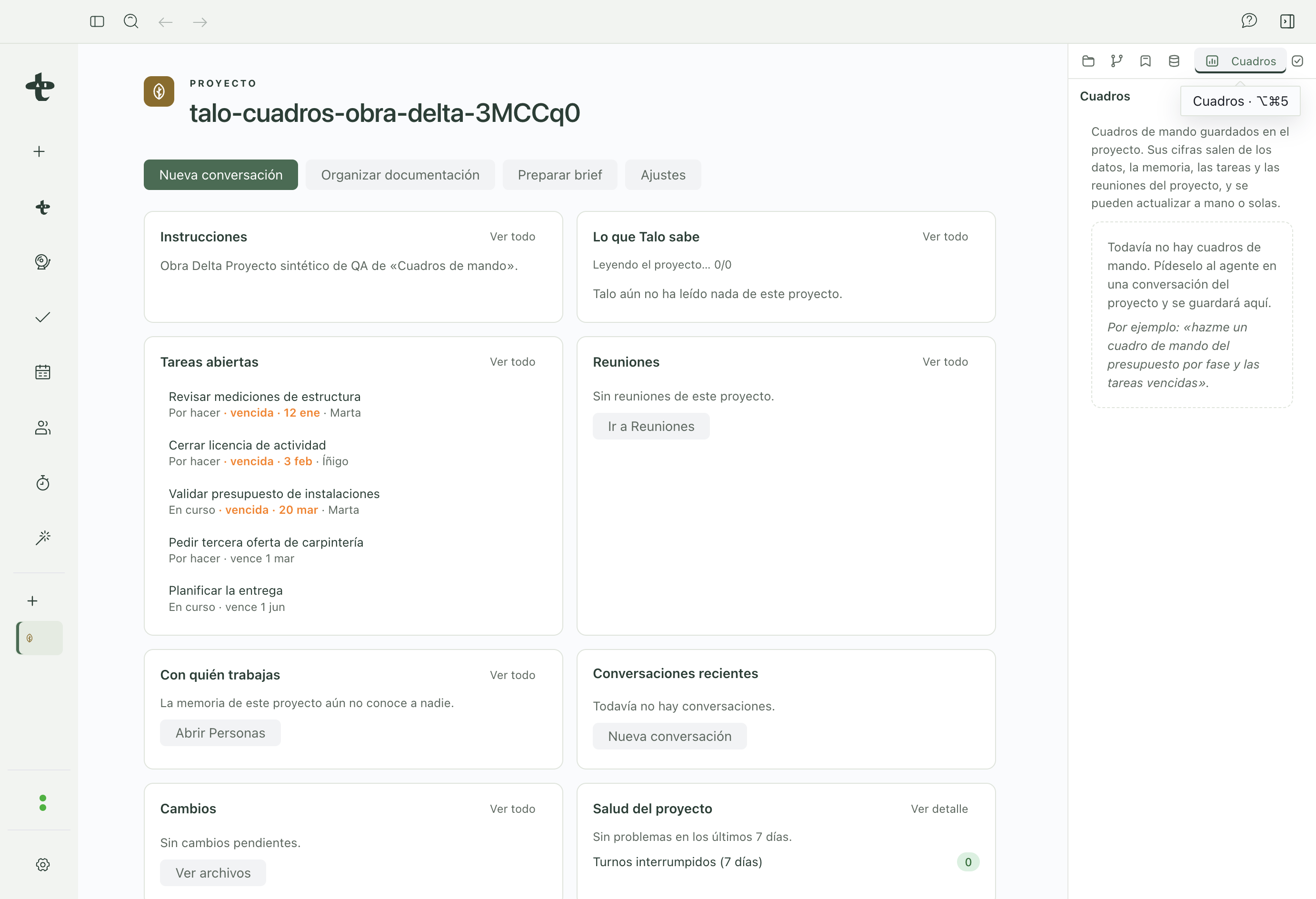
A dashboard is a view with indicators, charts, tables, or a list of overdue tasks, built from the project's data, memory, tasks, and meetings. The normal way to get one is to ask the agent in a conversation; you don't need to build it by hand.
Create one from chat
Ask for it in your own words, for example: "make me a dashboard with the budget by phase and the overdue tasks". The agent saves it and it opens on its own in the preview, with nothing to confirm: saving a dashboard is a smooth action, like saving a document. If you don't like it, "Undo" sends it back to how it was, or to the trash if it was just created.
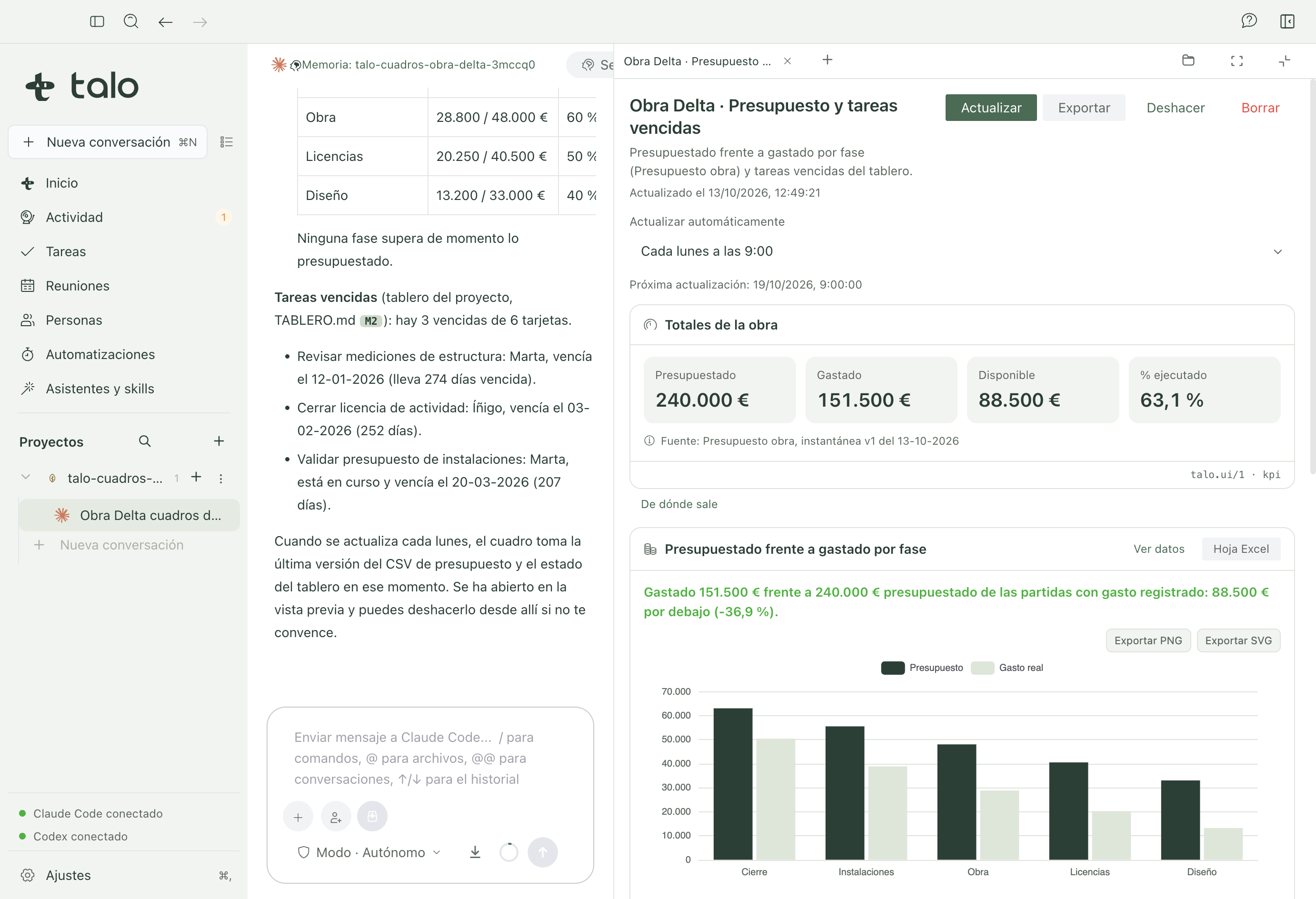
Every dashboard has indicators (KPIs), charts, a budget view, tables, a timeline, or a checklist, laid out in a grid that adapts to the width of the panel where you're viewing it.
Where every figure comes from
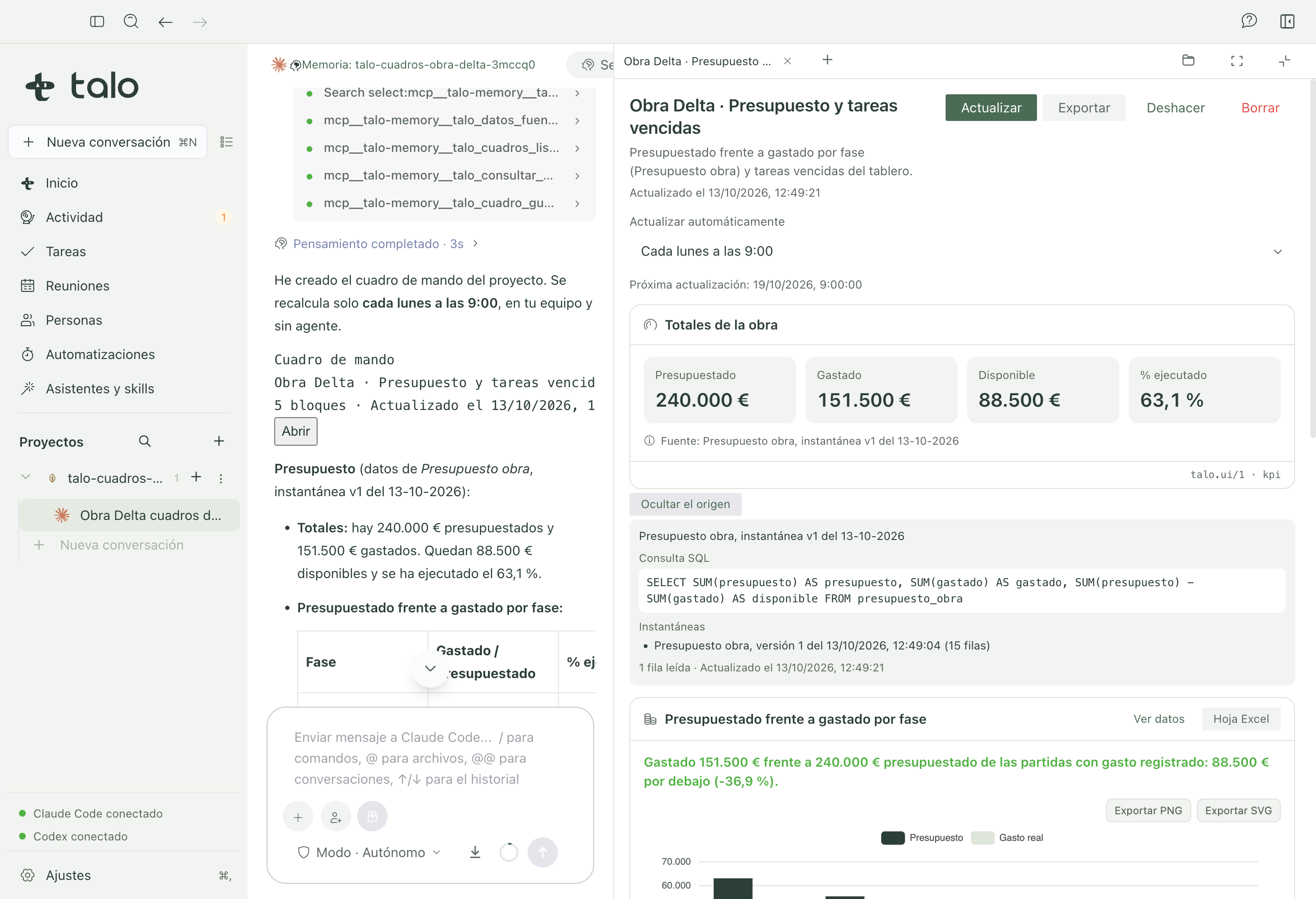
Every widget in a dashboard carries "Where this comes from": the SQL query or the memory source used, the exact snapshot (version and date), and the rows read. If you change a source's data and the dashboard doesn't match what you expected, this is the first place to look.
Keeping it current
- Refresh: a button on the dashboard itself rereads the latest data right away.
- Refresh automatically: choose never, daily, business days, or every Monday, and Talo recalculates it on its own, on your machine. You don't need any assistant or engine configured: this task doesn't use AI, it only rereads local data, so it works the same with Claude Code, with Codex, or with neither connected.
- If a source loses a column a widget needed, that specific widget shows its error inline. The rest of the dashboard keeps updating normally.
Export
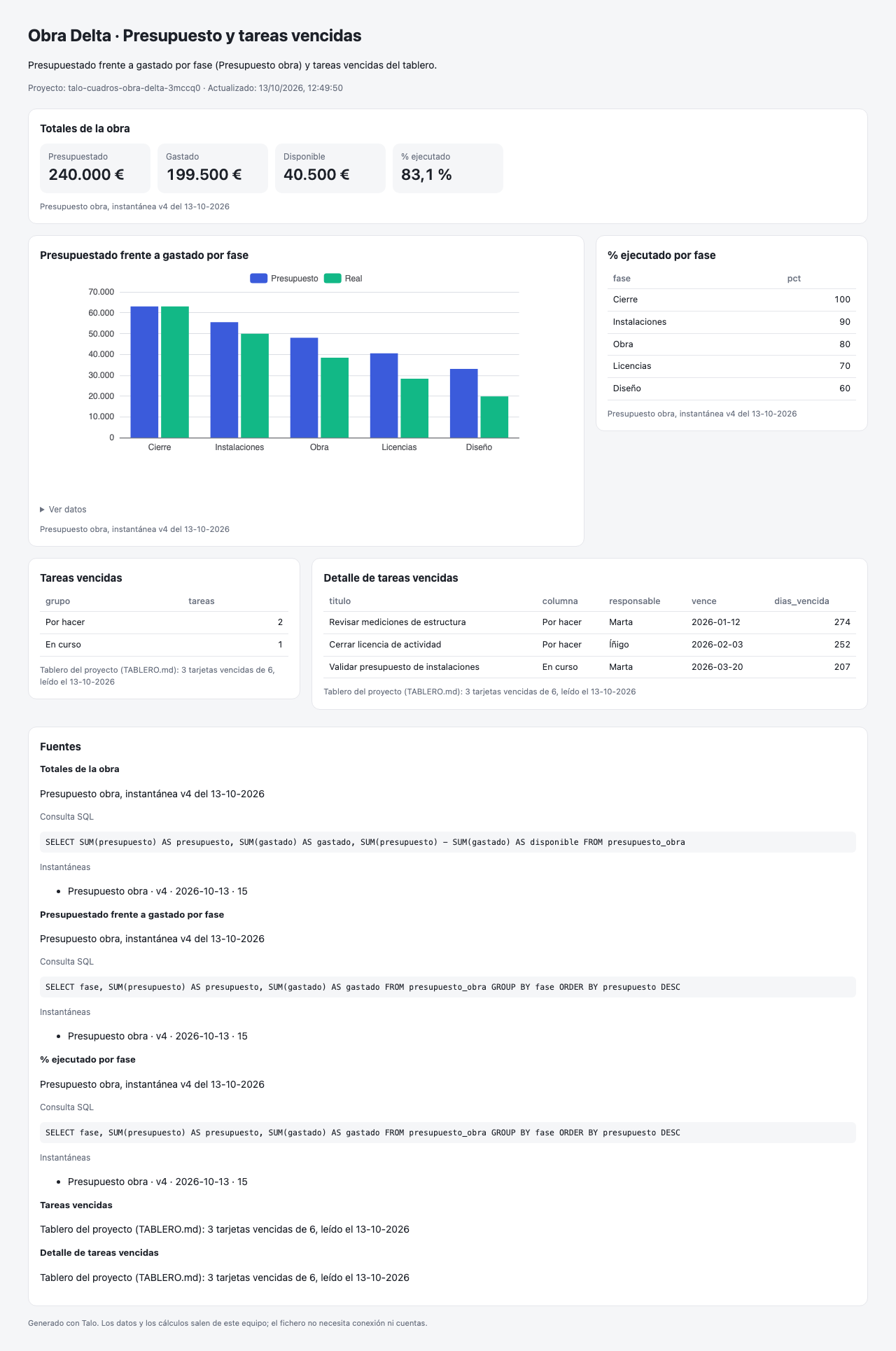
"Export" generates a single HTML file (with charts drawn as SVG and data as a table, no internet connection and no script at all) or a PNG of the same layout, to send or view it without opening Talo.
Where it lives
A dashboard is saved in the project's Talo area, next to the data snapshots, not inside the client's folder: it doesn't sync on its own with their cloud. If you need to share it with someone outside Talo, use the exported HTML.
To dig into where a dashboard's figures come from, see Project data and Memory.