

Talo Guide
Dictation
Dictate in the chat composer using the same local voice engine that Meetings uses, without anything leaving your Mac.
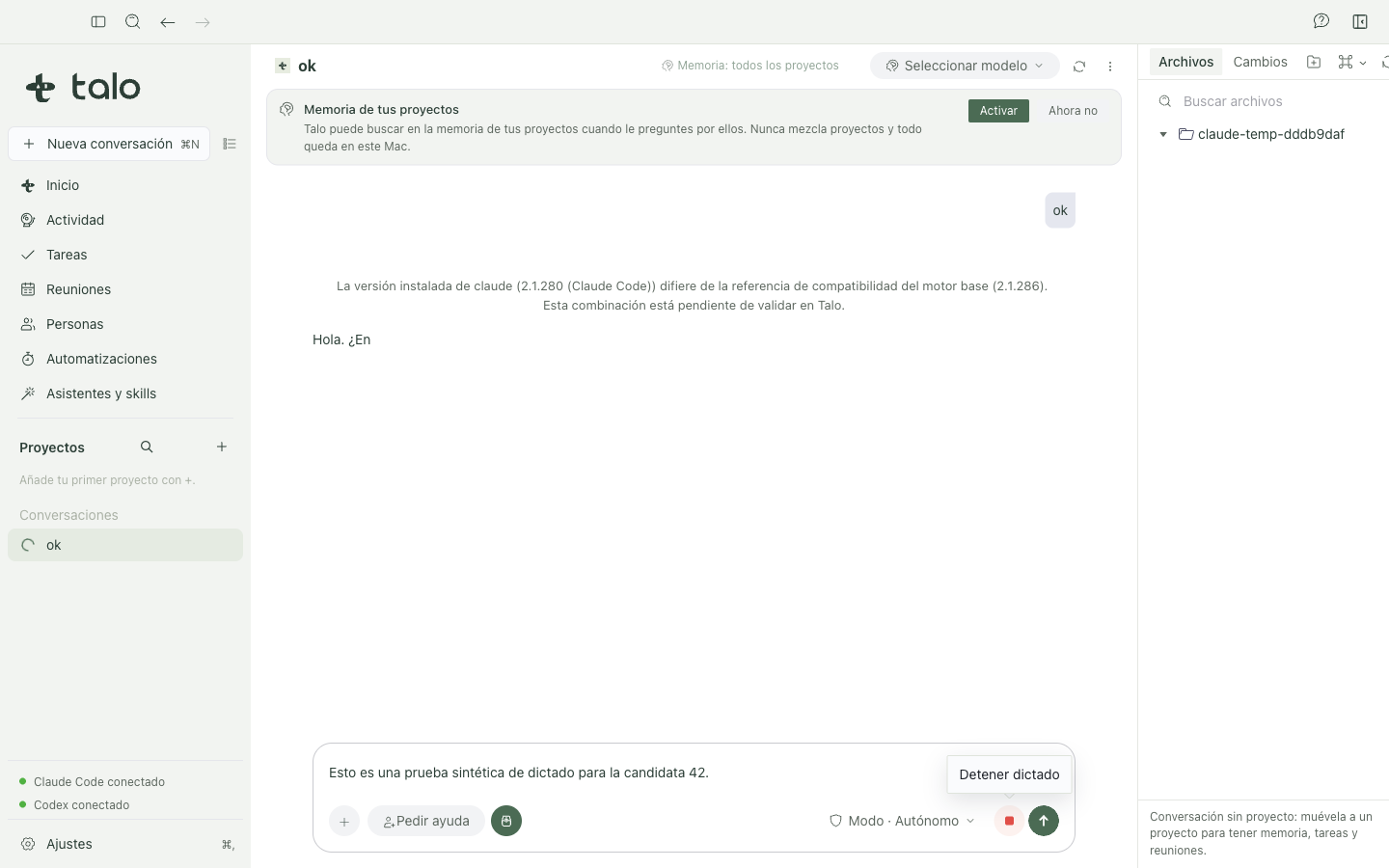
The microphone button in the composer dictates text using the same local voice engine that transcribes your meetings (the same model, the same microphone permission), never an external cloud voice-to-text service. It works in any conversation, with any project or without one.
How to use it
- Click the microphone button in the composer to start or stop dictation.
- Hold it down for more than an instant to dictate "on press": speak while you hold it and release to stop.
- The ⌘⇧D shortcut does the same with the composer focused.
The dictated text is added to the text box, just like macOS voice dictation: it never sends the message for you. Check the text, fix it if anything is missing, and click send when you want.
Why it is different from cloud dictation
The dictation session generates no file: there is no saved transcript, no session log, no debug audio. It lives only in memory while you dictate and disappears when you stop it or close Talo. Only you can start or stop a dictation session. An assistant can never turn on your microphone on its own.
If the voice model is not ready
Dictation uses the same transcription model as Meetings. If you have not downloaded it yet, Talo asks you the first time you try to dictate, with the same download progress you would see in Meetings; once ready, it is available for both without having to download it twice.
To learn more about the local transcription engine and its permissions, see Meetings.