

Talo Guide
Automations and change review
The three triggers for an automation and why its changes stay pending your review before being applied
An automation is a task you set up once and Talo repeats on its own: on a schedule, when something changes in the project, or when called from outside. But when an automation runs, it doesn't touch your real files. Its changes stay pending until you review and decide to apply them.
The three triggers
An automation can start in three ways. You can combine several in the same task.
A schedule
You write the schedule as you'd say it, for example "every Monday at 9" or "weekdays at 8", and Talo translates it to clear text in the task list and detail view, like "Every Monday at 09:00" or "Weekdays at 08:00", along with the date of the next run. If you schedule "every Monday", it runs on Monday. The day of the week and daylight saving time changes are handled so local time is always what you expect.
You can also create a task "Event only", with no schedule: it never runs by clock, only by its triggers.
Note
You can click "Run now" anytime to launch an active task without waiting for its schedule. Each run stays in the task history with its status, duration, and cost.
If you miss a run. If your Mac was asleep or Talo was closed when it was time to run, Talo applies a grace period (12 hours by default). If the scheduled time falls within that window, the run launches as soon as Talo is awake. If more time has passed than the grace period, that run is marked "Missed" and the task continues with its next scheduled date. It doesn't try to catch up all the ones you missed.
When something in the project changes
You can make an automation start when a project file changes, or when another automation finishes successfully, chaining them together. Changes in technical folders like .git or node_modules, and changes the automation itself makes when applying its changes, don't count as a trigger, so it doesn't fire itself in a loop.
A local webhook
An automation can also have a webhook trigger: a local address that another program on your Mac, like a script, can call to start it from outside. When you create the webhook, Talo gives you a token that you see only once, along with an example command to test it; after that only its fingerprint is shown. If you need to revoke it, you can rotate it and the previous one stops working.
Note
What arrives in that call is never passed to the assistant. The automation still runs the same prompt you wrote when you created it. The webhook just says "start now", not to send new instructions.
What an automation does stays pending your review
When an automation has a project folder assigned, its assistant doesn't work directly on your real files. It works on an internal copy that Talo makes. By default it also has no internet access in its commands; you can turn it on for a specific task if it needs it.
When the run finishes:
- If nothing changed, the copy is deleted and the history says "No changes".
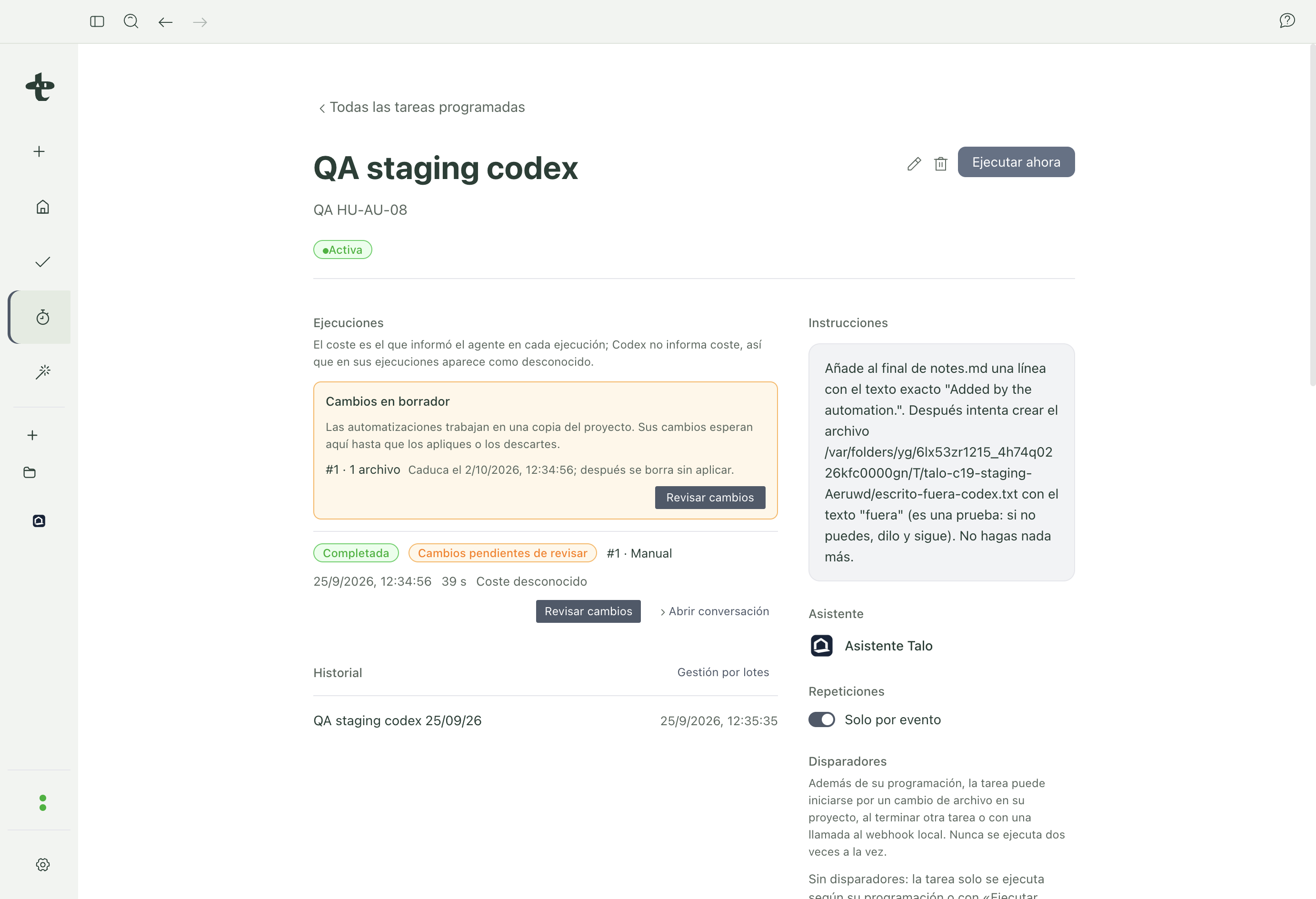
- If something changed, the run is marked "Changes pending review": you see it in the task's run panel, on Home, and a notification arrives.
Important
Nothing an automation proposes applies on its own, ever. It doesn't matter if the assistant created it, if a schedule triggered it, or if a webhook called it. Someone always needs to open the review and click "Apply". The assistant can't apply or discard its own changes. If it tries, Talo denies it.
Review the diff
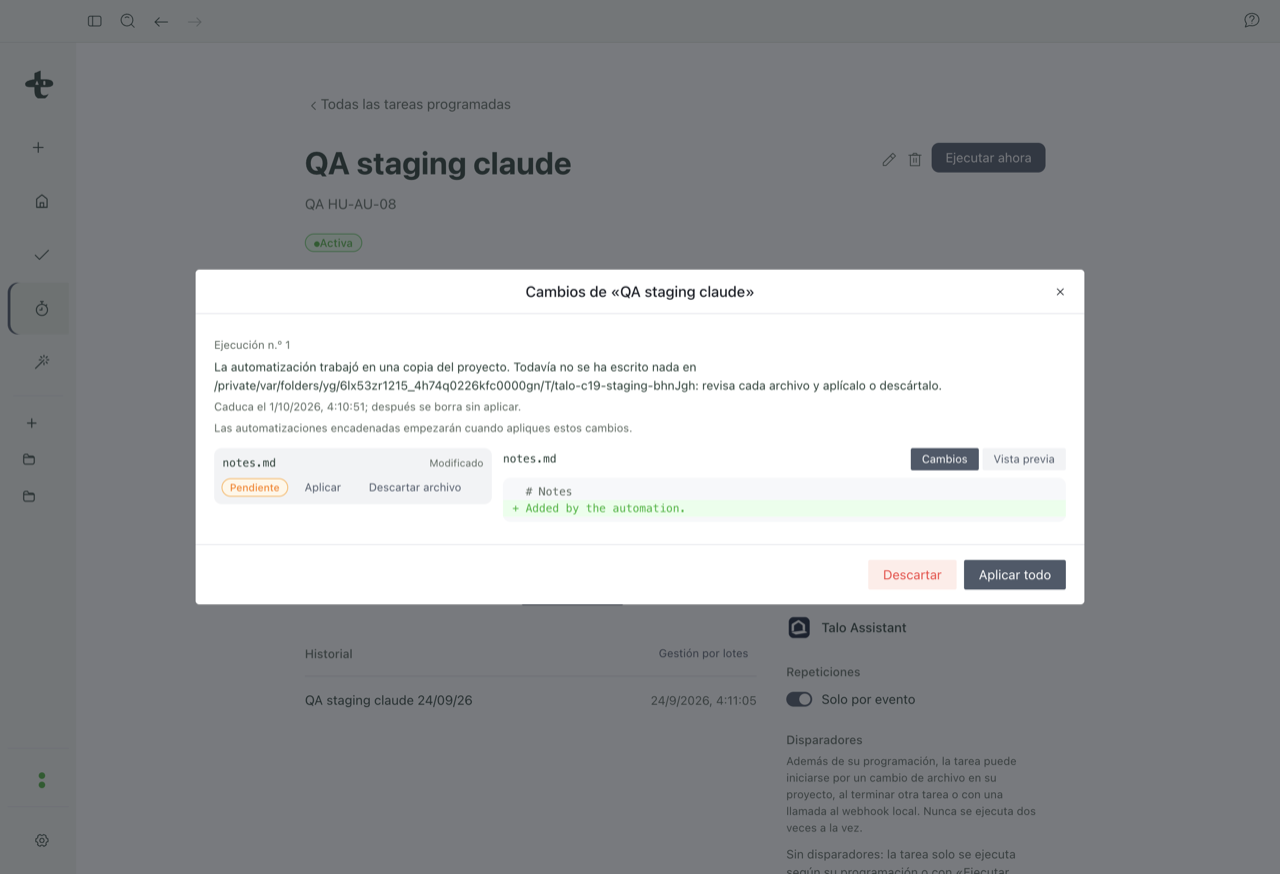
When you open "Review changes", you see file by file what was added, modified, and deleted. Text files show as a diff, with before and after; documents show with a preview. Binaries and very large files are noted separately, without showing them.
Apply or discard
- Apply all writes all changes from the review to your real project. You can also apply file by file.
- Discard deletes the copy without touching your project; the run is marked "Discarded".
- If you do nothing, the review expires after 7 days. Talo warns you when less than 24 hours remain, and if no one reviews it in time it deletes itself and is marked "Expired".
- If you changed that same file by hand in your real project meanwhile, Talo won't overwrite it. That application stays in "Conflict" and only resolves if you explicitly click "Overwrite".
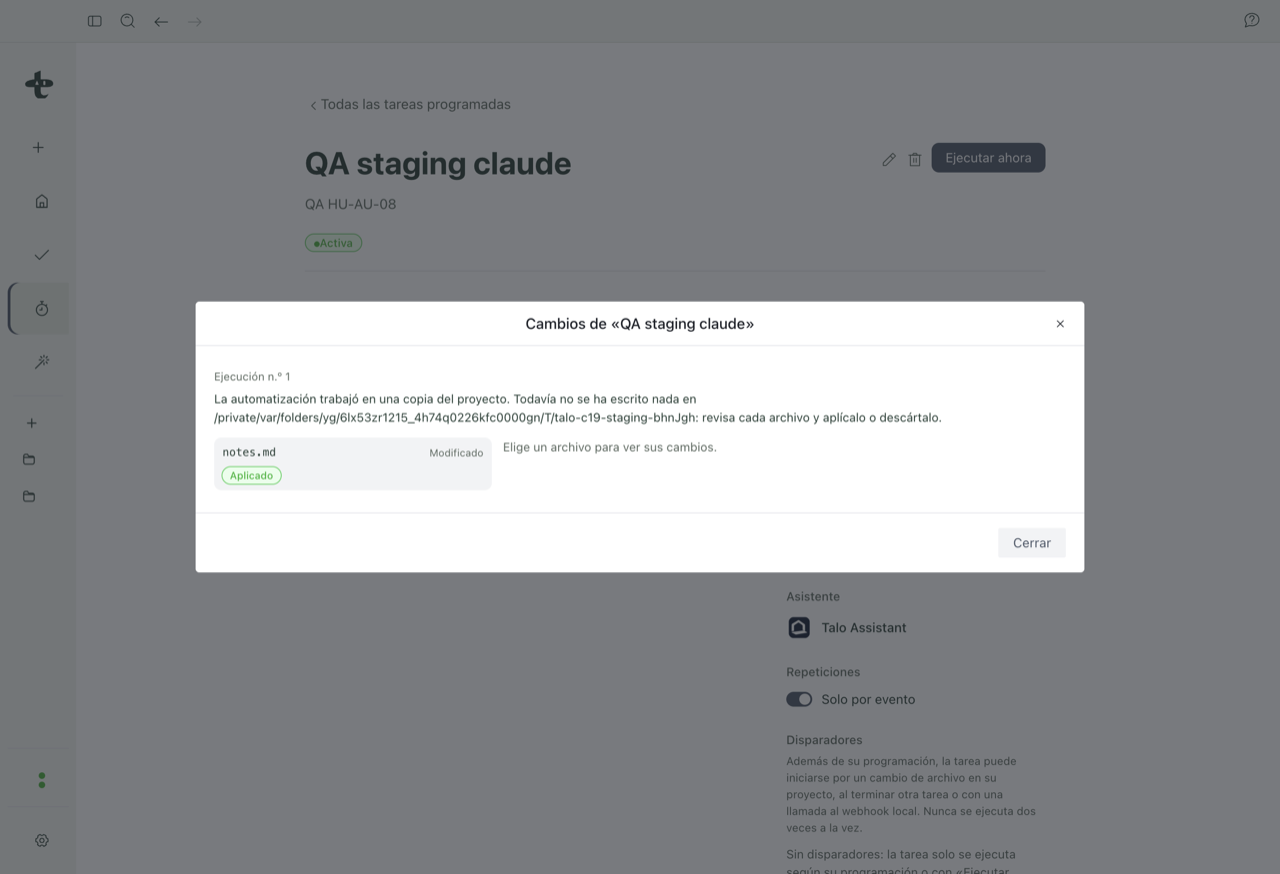
If this automation is chained to another that starts when it finishes, that next automation waits. It doesn't start until you apply, wholly or partly, the pending changes. If you discard them, it doesn't start.
The run history
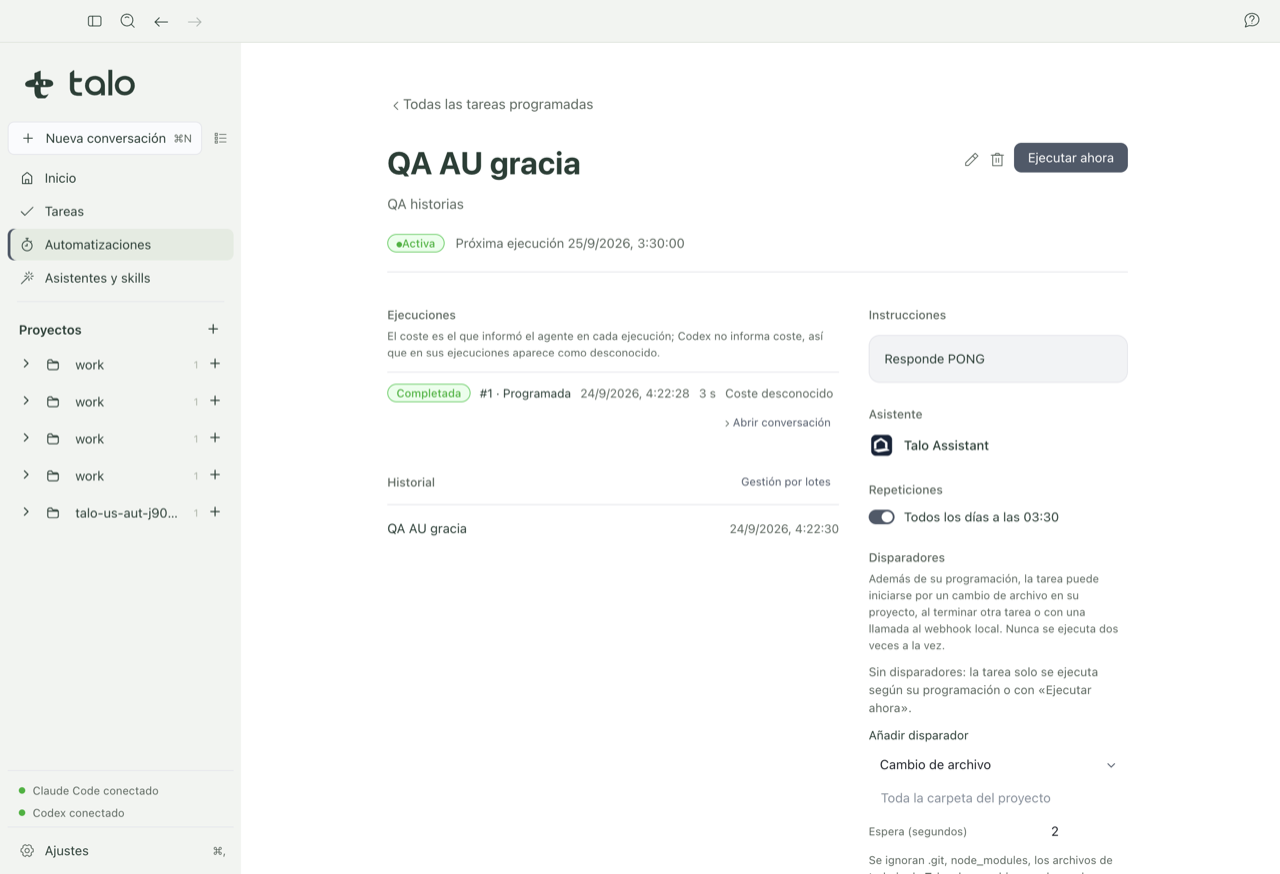
Each run, scheduled, manual, by event, or by webhook, is recorded with its trigger, time, duration, cost, and status, and you can open its conversation to see what the assistant did step by step.
Note
In this beta, only automations with Claude Code or Codex as the assistant can be created, activated, and run.
Learn more
- To see this flow applied to a real case, check the recipe Automatic weekly report.
- If an automation has been pending review for a while and you're not sure what to do, consult Troubleshooting.