

Talo Guide
Settings
What is in each Settings group and what it is for.
Settings brings together everything you can customize in Talo, organized into six groups. You don't need to touch almost anything to start working: the default values work well from day one. Come here when you want to change the language, connect an assistant, review an automation, or send feedback.
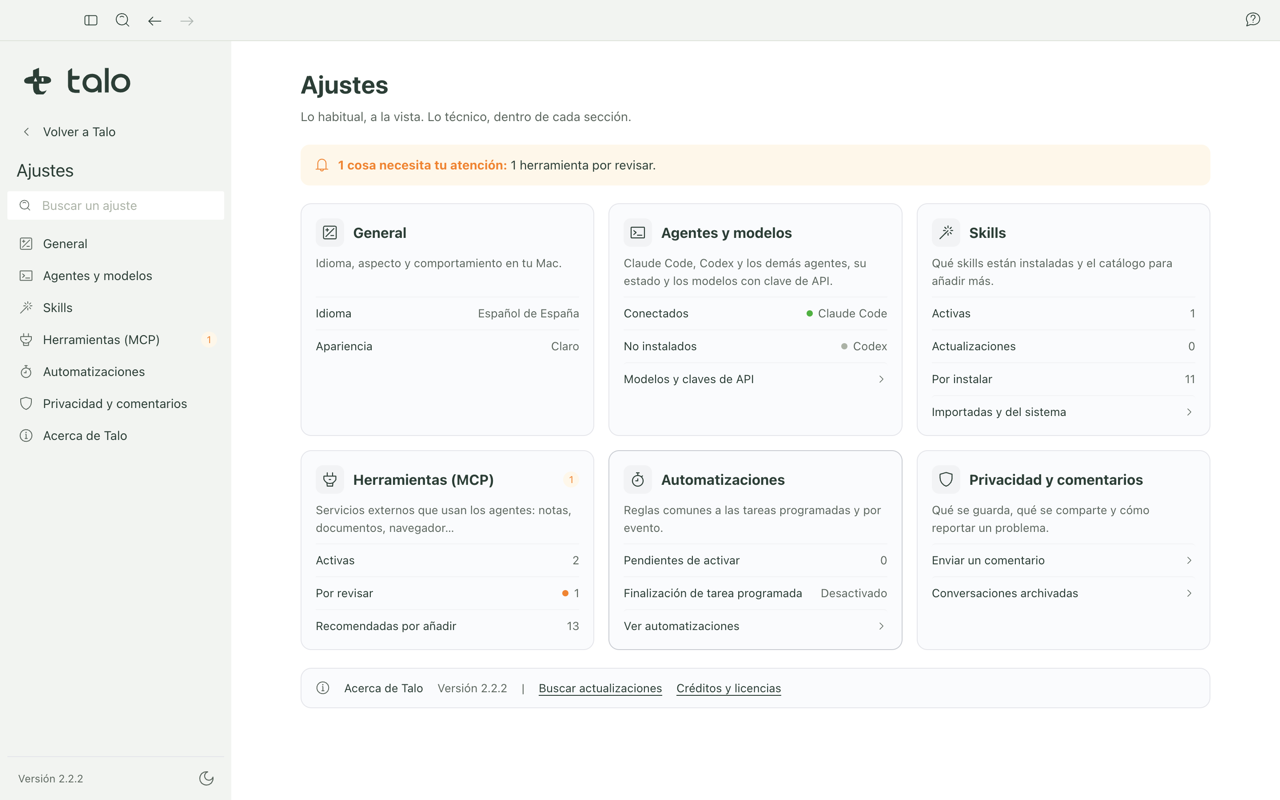
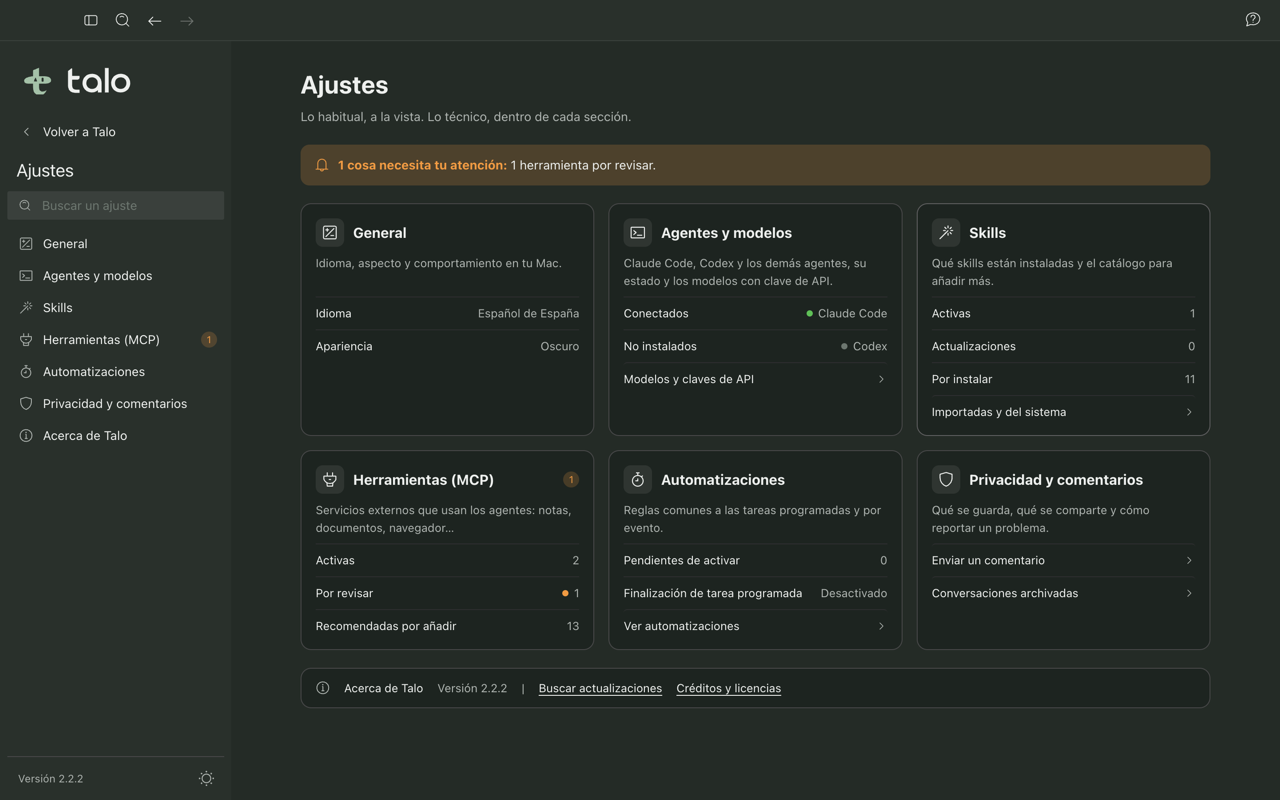
Talo has light and dark theme. You can choose whichever you prefer, or let it follow your system theme, from the General group.
General
Here you control the basics of the application:
- Language of the whole interface.
- Appearance: light or dark theme and the size of text and elements on screen (scale).
- Notifications: which alerts you want to receive and which you prefer to mute.
- Launch and window: whether Talo opens when you start your Mac and how its window behaves.
Tip
Inside General there is a "More options" section with technical settings (timeouts, work and log folders, and similar). Most people never need to go in there: they are meant for edge cases or people who provide technical support.
Agents and Models
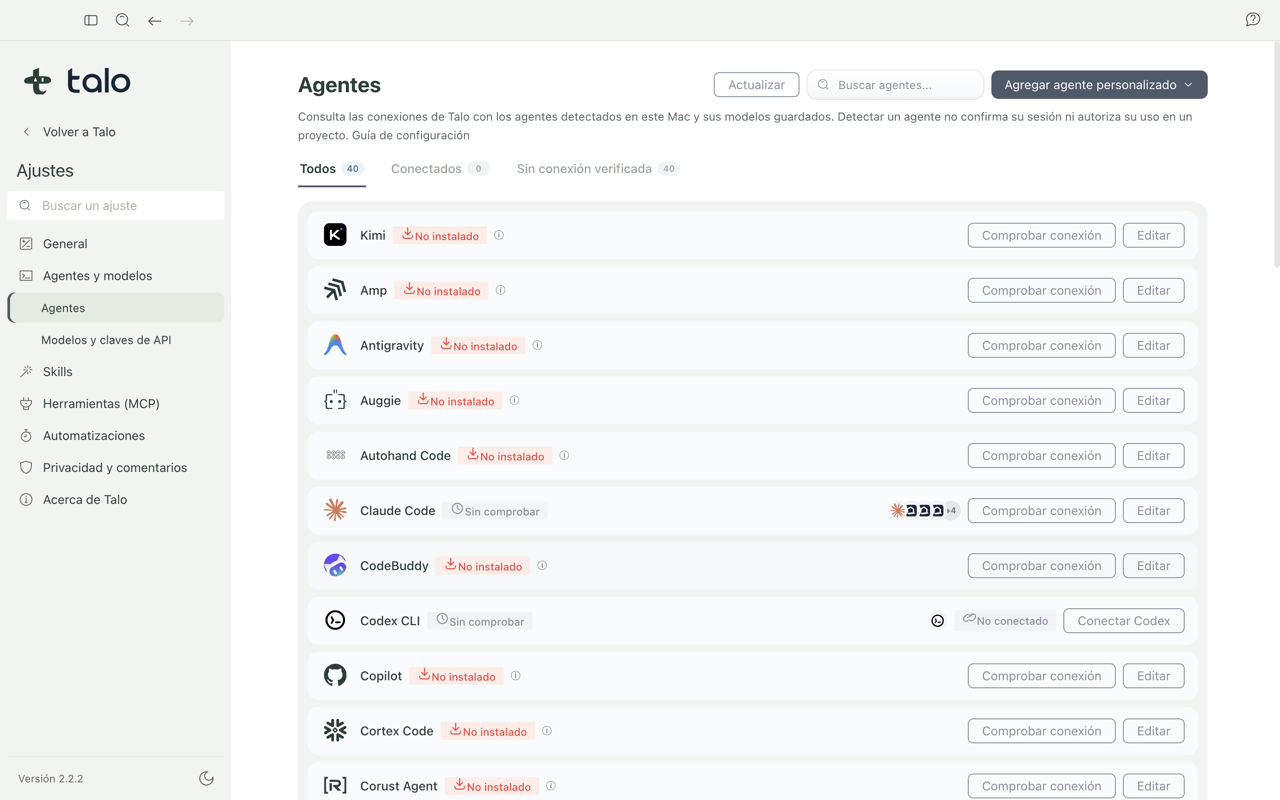
This group has two parts.
First, a card for each assistant Talo knows how to use: Claude Code and Codex. Each card shows the real state of the connection, checked on your own Mac, and offers one clear action based on that state:
| Card state | What it means | What you can do |
|---|---|---|
| Connected | You have a session and everything works | Check connection (optional, just in case) |
| Not signed in | The assistant is installed but you have not signed in | Sign in |
| Not installed | The assistant is not on your Mac | See how to install it, or check again if you just installed it |
| Problems | Something is not right in the check | See the problem detail |
| Checking… | Talo is verifying the state right now | None, it is just a temporary indicator |
While an assistant does not show as "Connected", Talo doesn't let you send it messages: it prefers to warn you clearly rather than leave a conversation halfway through.
Second, you choose which agent and model each new conversation starts with when you don't say anything at the time you create it. You can set a default value for all of Talo, or leave it unset and use the product's standard behavior.
Note
You can only choose as a default an agent that is already connected, and the models and permissions that agent offers you. If you later remove that value, Talo returns to its factory behavior.
Tip
"More options" stores the API keys of other providers and the configuration of custom agents. They are advanced settings: they are not needed to start working with Claude Code or Codex.
Corporate account (Claude Code and Codex)
Each Claude Code and Codex card has an Account button. By default both use Personal subscription: your usual signed-in session, no changes. If your company already pays its own contract with the cloud provider, you can switch there to:
- Claude Code: Anthropic API key, Amazon Bedrock, Google Vertex AI, or Azure AI Foundry.
- Codex: OpenAI API key or Azure OpenAI.
Each option opens a form with the data that provider asks for (region, project or resource, key or credential). If you already saved a key and only change another field, you can leave the key field empty: Talo keeps the one it already has. When you save, Talo validates the needed fields and offers a Test connection button that makes a real minimal request to the provider and tells you right away if the account works or what fails. Exception: Google Vertex AI and Bedrock's API key still don't have that live test (the configuration is saved anyway).
Important
The keys and credentials you type are saved encrypted in Talo's own store. Never in a plain text file or in your Claude Code or Codex personal folder. Once saved, Talo never shows them again: you only see whether an account is set up, not its contents. Choosing a corporate account is always your explicit action, from this form. No agent can read it or change it.
Going back to Personal subscription at any time deletes the saved corporate account and conversations go back to using your usual session, with no variables from the old account left active.
Skills and tools
From here you manage the extra abilities of your assistants:
- The installed skills, which are packages of instructions for specific tasks.
- Import a new skill.
- The MCP connectors, which give an assistant access to external tools or services.
- Talo's built-in browser, which an agent can use to check web pages when you allow it.
Important
Installing a new skill or adding an MCP connector always requires your explicit confirmation. No agent can add tools to itself.
Automations
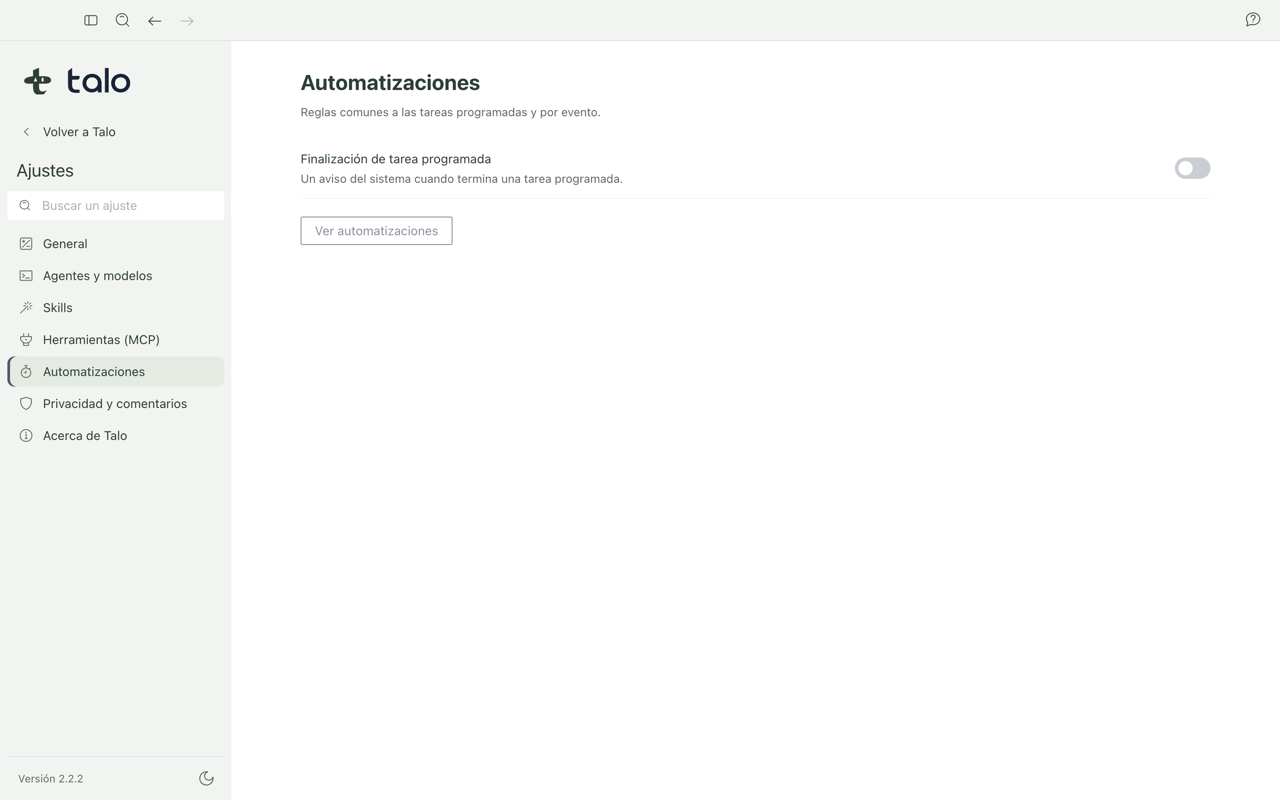
Here you adjust how your automations behave:
- Finish notifications, so you find out without having to watch it.
- Timezone, which scheduled automations use to know when to run.
- Quick access to pending changes for review, that is, what an automation wants to apply and you have not approved yet.
Important
An automation never applies changes on its own: it leaves them pending for you to review and approve. This Settings group is the quick access to that review.
Privacy and feedback
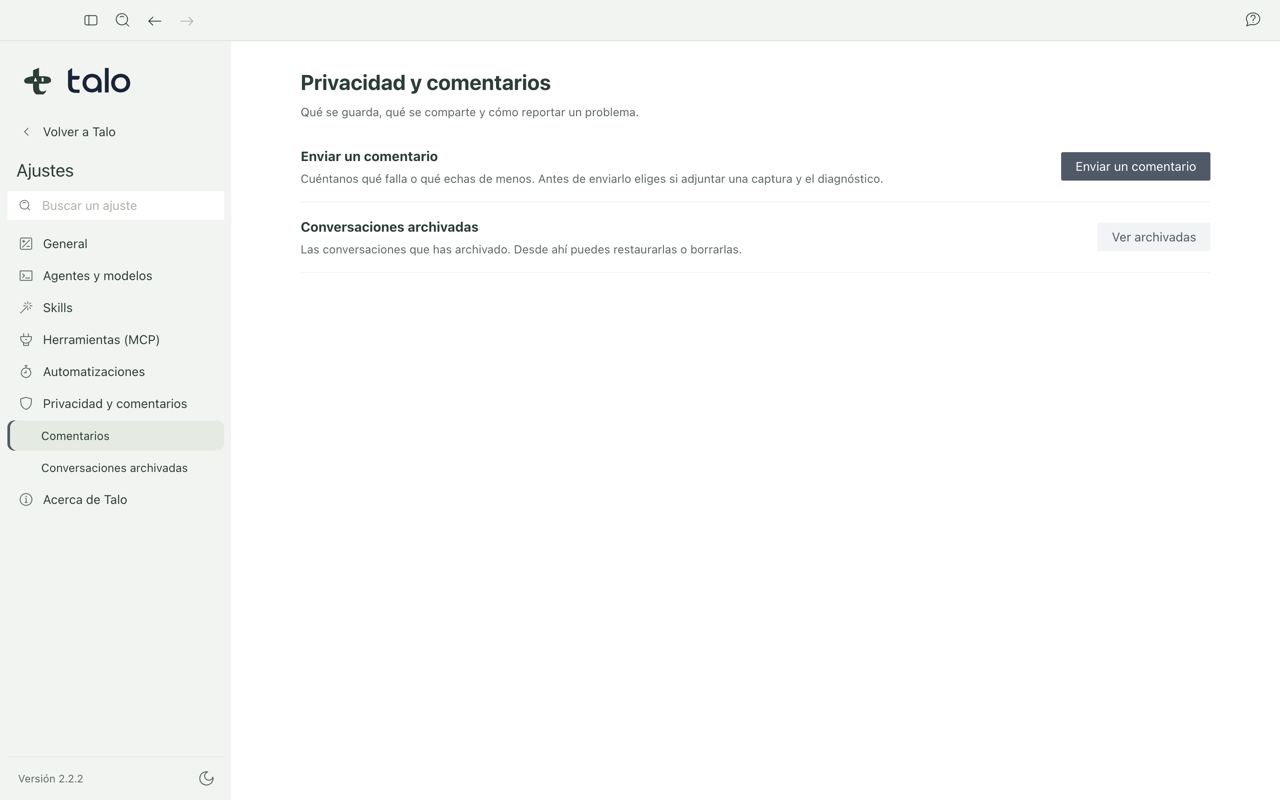
From here you can:
- Send feedback or report a problem.
- Choose whether to attach technical diagnosis to that feedback (it is optional, you decide).
- Check what built-in browser data Talo keeps.
- Manage your archived conversations.
This group just brings together the quick accesses. To understand well what data stays on your Mac, what gets sent and when, see Privacy and security.
About Talo
General information about the application:
- Version installed.
- Updates available.
- Third-party licenses of the software that Talo uses.
- Credits.
Learn more
- Privacy and security explains in detail what data stays on your Mac, what requires your confirmation, and what you can choose to share.
- Feedback explains step by step how to send feedback or report a problem.