

Talo Guide
MCP Tools
What an MCP tool is, how to search for it in the official registry, and what happens if the registry doesn't respond.
About the screenshots in this guide
Every screenshot in this English guide is a real capture of Talo, currently shown with the Spanish interface (the English interface is on its way). Menus, buttons and labels in the pictures are in Spanish; the surrounding text describes what each one does in English.
An MCP tool is a connector that gives your assistant a specific capability beyond conversation: for example, query your Notion pages, generate an image, or search an external registry. You decide which tools each assistant has available, and you can always see if they're working.
The tools Talo includes
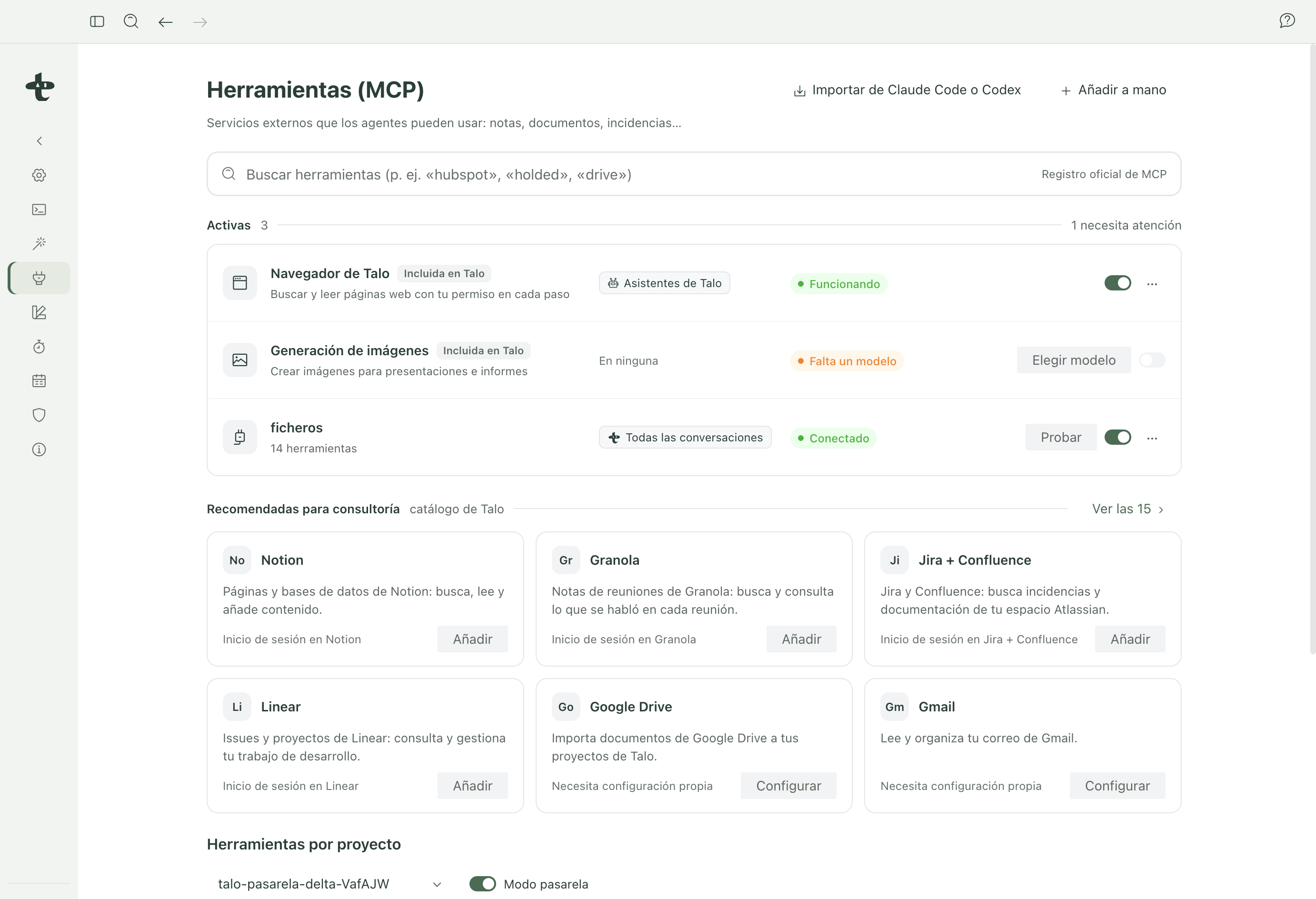
Talo comes with two built-in tools: Talo's Browser (so the assistant can browse the web with you) and Image Generation. You'll see them marked as "Included in Talo" in Settings › Tools, with their real status:
- "Working" or "Connected": everything's good.
- "Not responding": something's wrong; you have a "Retry" button to check.
- "Model required" (in Image Generation): you need to pick a model before you can use it.
Talo's Browser is available for Talo assistants, not all conversations. Built-in tools can't be removed. You can only test or disable them.
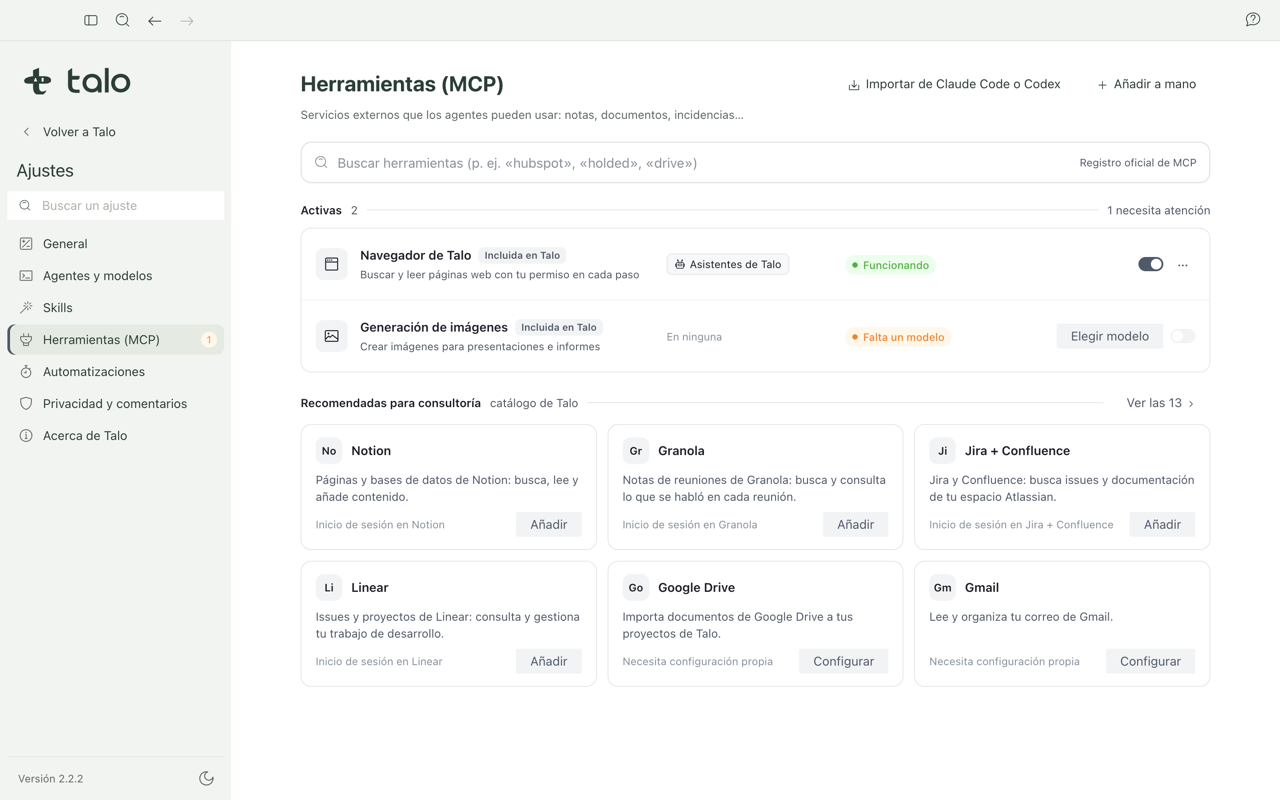
Add a recommended tool
For common consulting tasks, Talo suggests recommended connectors (like Notion).
- Go to Settings › Tools › "Recommended for consulting".
- Click "Add" on the connector you want.
- Read the sheet that appears. It tells you what will be added, what runs on your Mac, what permissions and credentials it asks for, and where they're stored.
- Follow the authorization steps shown (usually you sign in in your browser).
- Talo tests the connection automatically. If the test fails, the tool stays off with "Retry"; if it succeeds, it becomes "Connected" and its functions reach your conversations.
If the session expires later, you'll see "Session expired" with a "Reconnect" button.
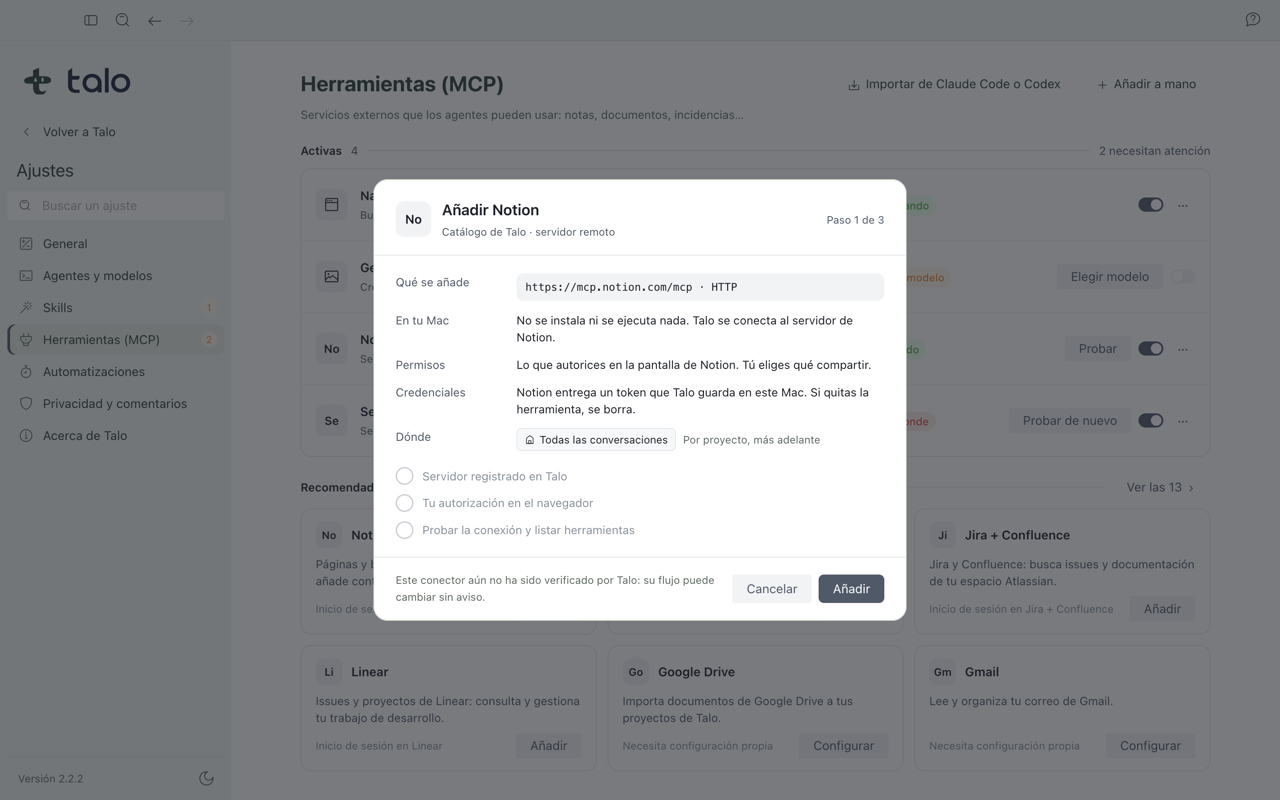
Important
Adding a tool is always your decision. Talo shows you first what gets installed, what runs on your Mac, and what permissions it asks for, and only acts when you confirm. An assistant can suggest a tool, but never adds it on its own. A person always has to confirm.
Search for a tool in the official registry
If what you need isn't among the recommended ones, you can search the official MCP tools registry.
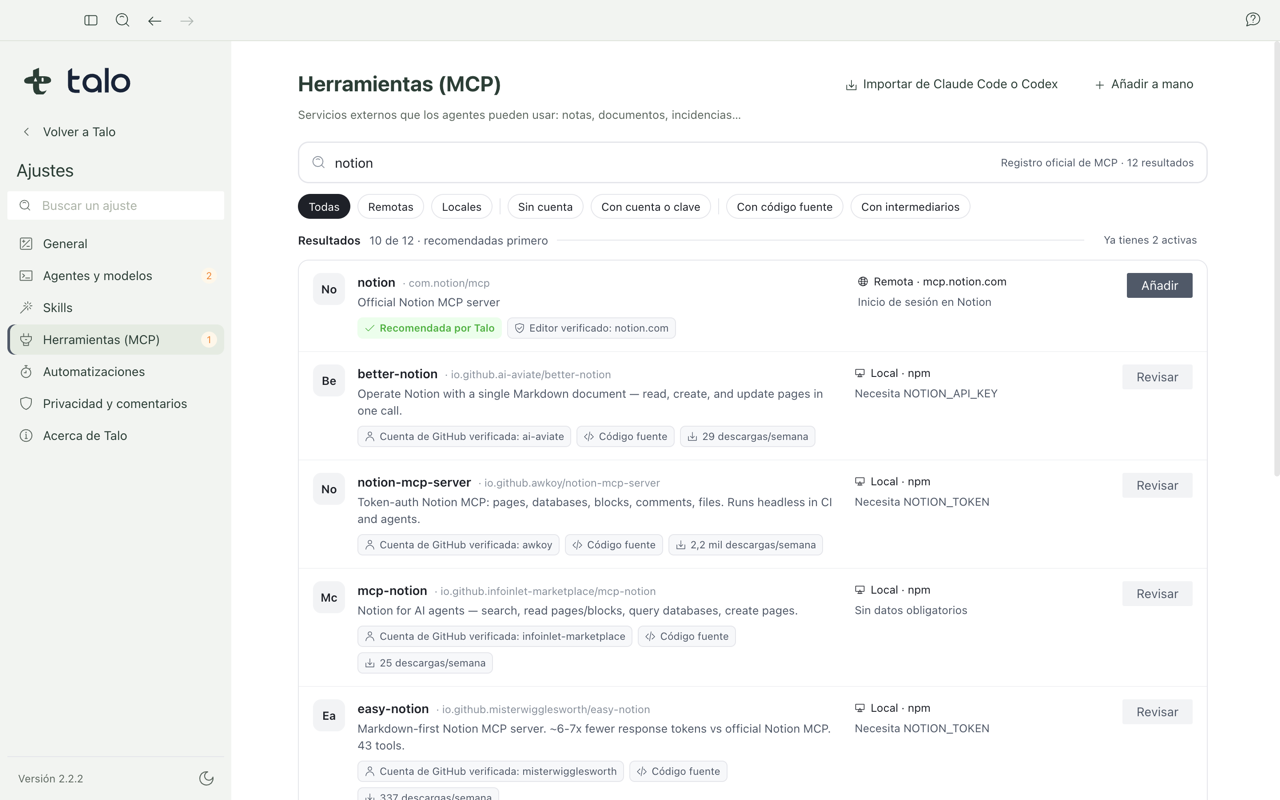
- Go to Settings › Tools › Search and type what you need (for example, "notion").
- Official results appear first. Those that depend on an intermediary are hidden by default, with a button to "Show" those results if you want to see them anyway.
- Click "Review" on the result you want. A mandatory sheet opens showing the exact command that would run, with a specific version pinned (not "the latest that exists"), a warning that Talo hasn't reviewed it, who publishes it, and any secrets masked.
- If the result depends on an intermediary, you'll need to check two boxes: that you've reviewed the tool and that you understand your data will pass through that intermediary. If an equivalent official version exists, the sheet offers to use that instead.
- If you close the sheet without confirming, nothing gets added.
- Check the box and click "Add and test". The tool gets added in off state, Talo tests it, and only turns it on if the test succeeds.
In the beta, only remote or npm-type tools can be added; other formats show as "Not available in beta" and can't be added. Trust signals (like GitHub stars) are shown with their source. If they don't come from a verified account, they're marked as "claimed by publisher, unverified".
If the registry doesn't respond
Each recent search is saved in a local copy for an hour. Registry queries have a 20-second timeout and Talo retries once on timeout or server error. If it still doesn't respond:
- With a good last copy from up to 7 days ago, Talo shows it to you anyway and says when it was retrieved. Check that the result is still current before adding a tool.
- If there's no copy and no connection, you see "Offline · Only Talo's recommended tools" and the "Add" button is inactive. You can only use recommended tools you already know.
- If the registry responds with an error or times out, you see "Registry not responding" with a "Retry" button.
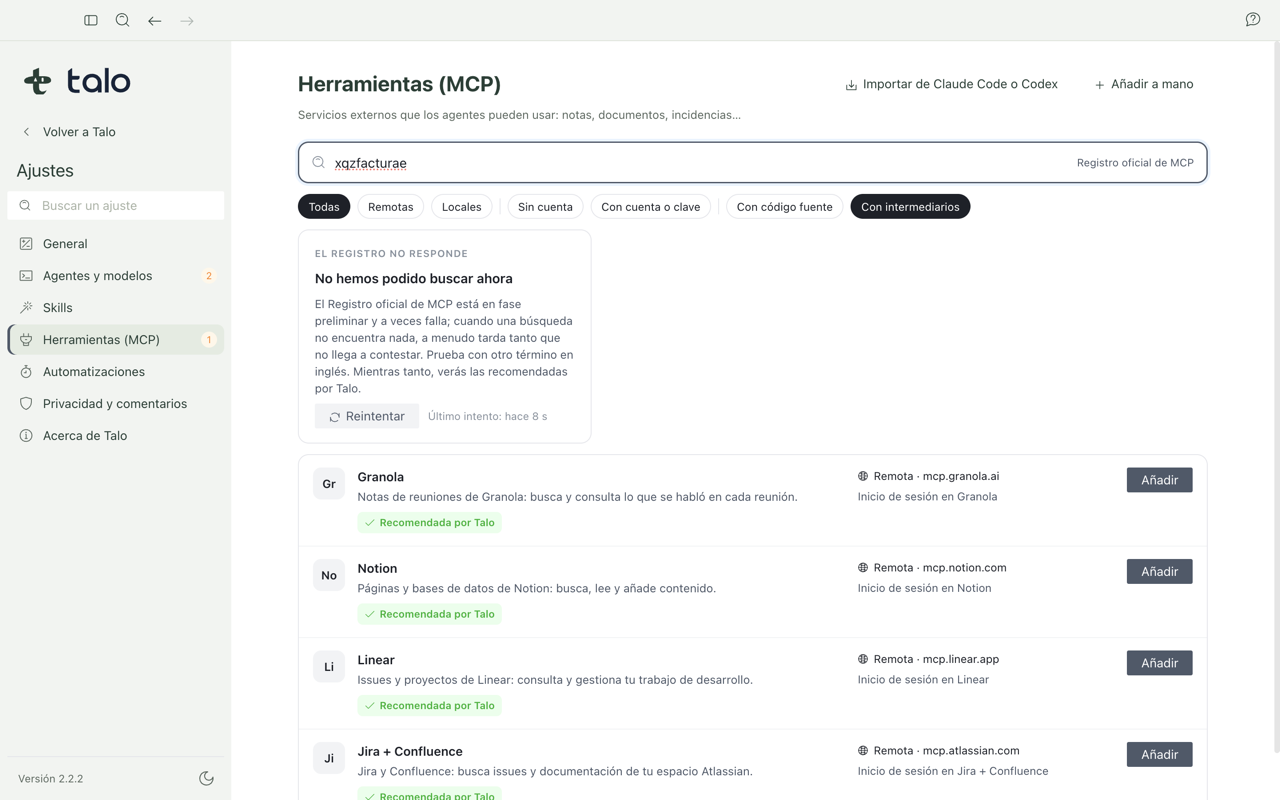
If this happens often, see Troubleshooting.
Tools per project: "discovering isn't activating"
A tool being connected to Talo doesn't mean an agent can use it in any project. Every new tool arrives switched off. You decide, project by project, which one gets turned on, one at a time or by whole server, from "Tools per project" at the bottom of Settings › Tools (MCP). If you change your mind, you can "Enable all" or switch a specific one back off at any time.
Gateway mode
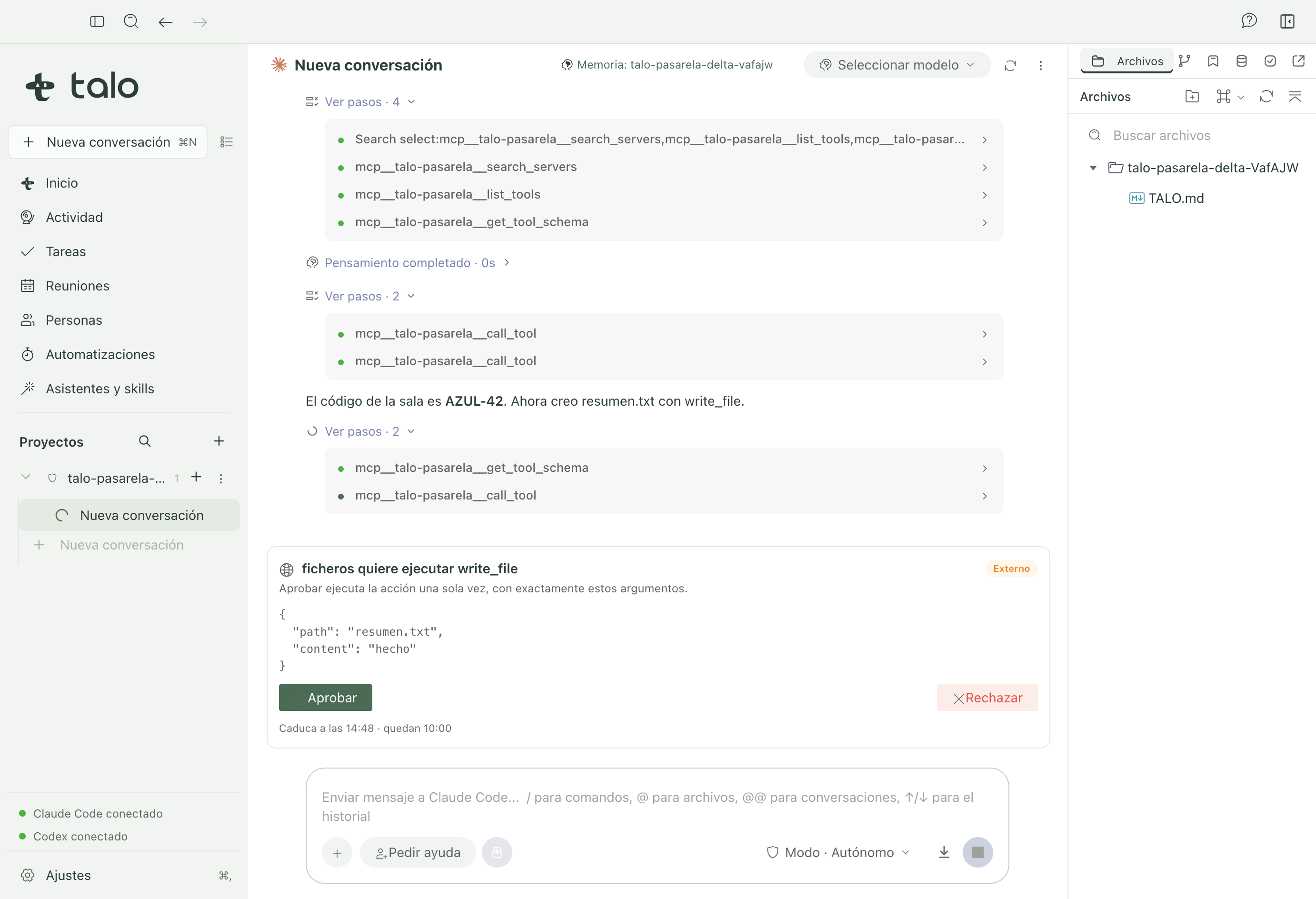
With many connectors turned on, listing every single tool to the agent takes up a fair amount of space in each turn. Gateway mode solves this: instead of seeing the real tools, the agent sees only four (search servers, list tools, inspect one, and call it) and asks for everything through them, on demand. The savings are large: in a test with 5 servers and 60 real tools, direct mode used about 9,000 tokens of context per turn; with the gateway, about 570 (94% less).
As of this release, gateway mode turns on by itself as soon as the project has at least one external connector enabled; with none, it stays in direct mode. The tab's manual switch always wins over that calculated default, so you can turn it off or on yourself if you prefer it another way. Talo's own built-in tools (the browser, project data, dashboards) never go through the gateway, whatever the mode.
A read marked safe by the server itself runs without asking; a write always waits for your approval with a decision card right in the chat, with the exact arguments and a visible expiry ("Expires at 10:46 · 10:00 left"). Nothing runs twice and nothing approves itself.
Connect an API with OpenAPI
If the service you need doesn't have an MCP connector but does have OpenAPI documentation (3.x, JSON or YAML), you can paste its URL or its text from Settings › Tools › "Connect an API". Talo turns its operations into tools, switched off just like the others until you enable them per project: reads (GET) are offered as safe, and any other operation asks for your approval the same way a gateway write does. If the API needs a token, it's stored in macOS's system keychain, never in the project catalog.
Share memory with other apps
You can let another AI app on this Mac (like Claude Desktop) query, read-only, the memory of whichever projects you choose, from Settings › Tools › "Share memory with other apps". Off by default for every project: only the ones you turn on there become visible to an outside app.
- Turn on the project you want to share.
- Click "Create client" (for example, "Claude Desktop"). Talo gives you its own token, shown only once, so copy it then.
- Click "Copy configuration for Claude Desktop" and paste it into its
claude_desktop_config.jsonfile, replacing the example token with the one you copied. - Restart Claude Desktop so it loads the new server.
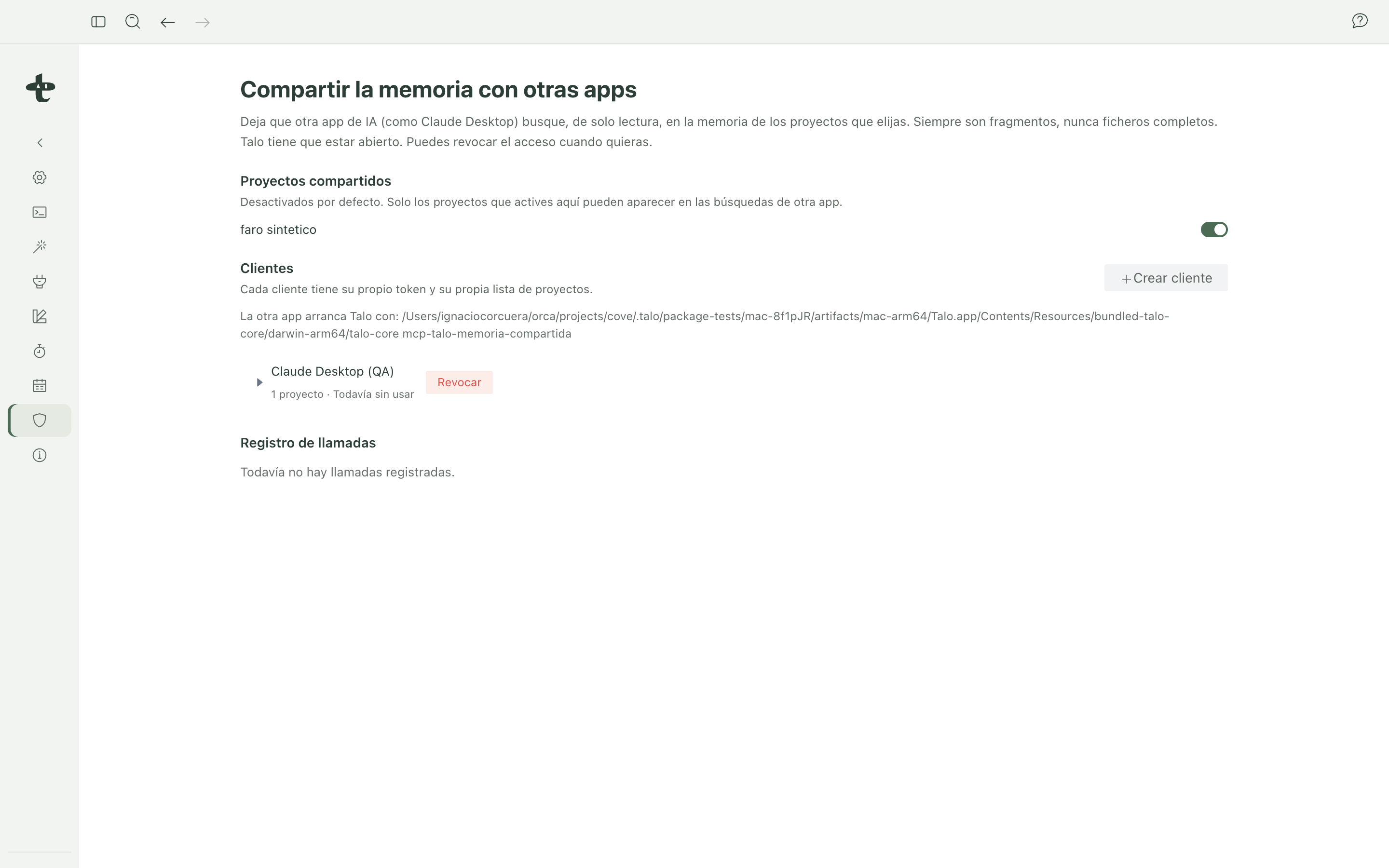
What that other app receives is always memory fragments, never a whole file or the project's conversations. You can revoke a client at any time from the same screen. Revoking cuts off access instantly.