

Talo Guide
Project data
Import spreadsheets and databases, and ask the agent with cited SQL queries, with no made-up numbers.
About the screenshots in this guide
Every screenshot in this English guide is a real capture of Talo, currently shown with the Spanish interface (the English interface is on its way). Menus, buttons and labels in the pictures are in Spanish; the surrounding text describes what each one does in English.
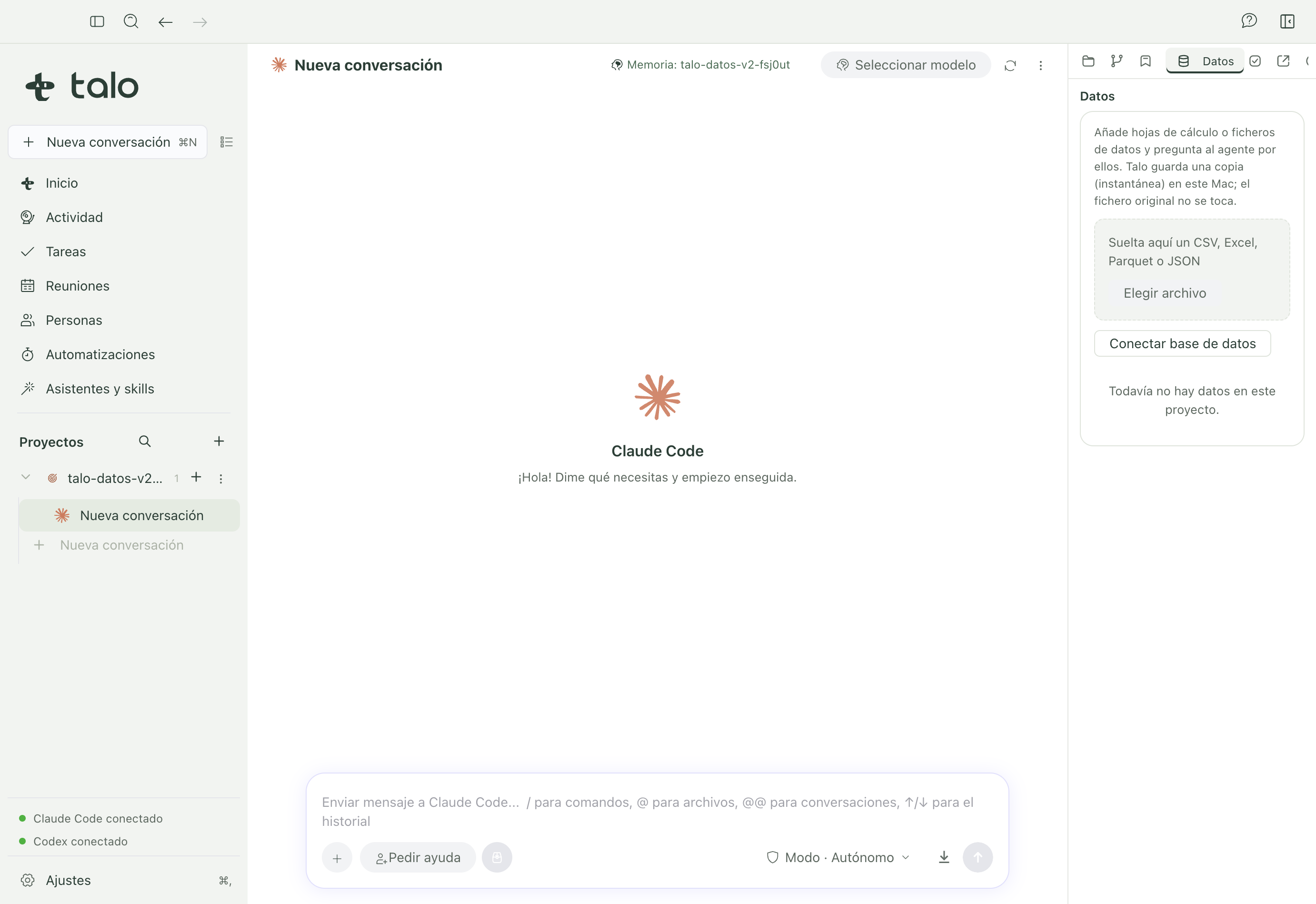
A project's "Data" tab holds spreadsheets, data files, and read-only database connections, so the agent answers with exact figures instead of estimating them. Talo keeps a copy (a "snapshot") on this Mac; the original file is never touched.
What you can add
- Files: CSV, TSV, Excel (XLSX, XLS, XLSB, ODS), Parquet, and JSON or NDJSON. Drop them on the tab or click "Choose file".
- A PostgreSQL or MySQL database, read-only, from "Connect database".
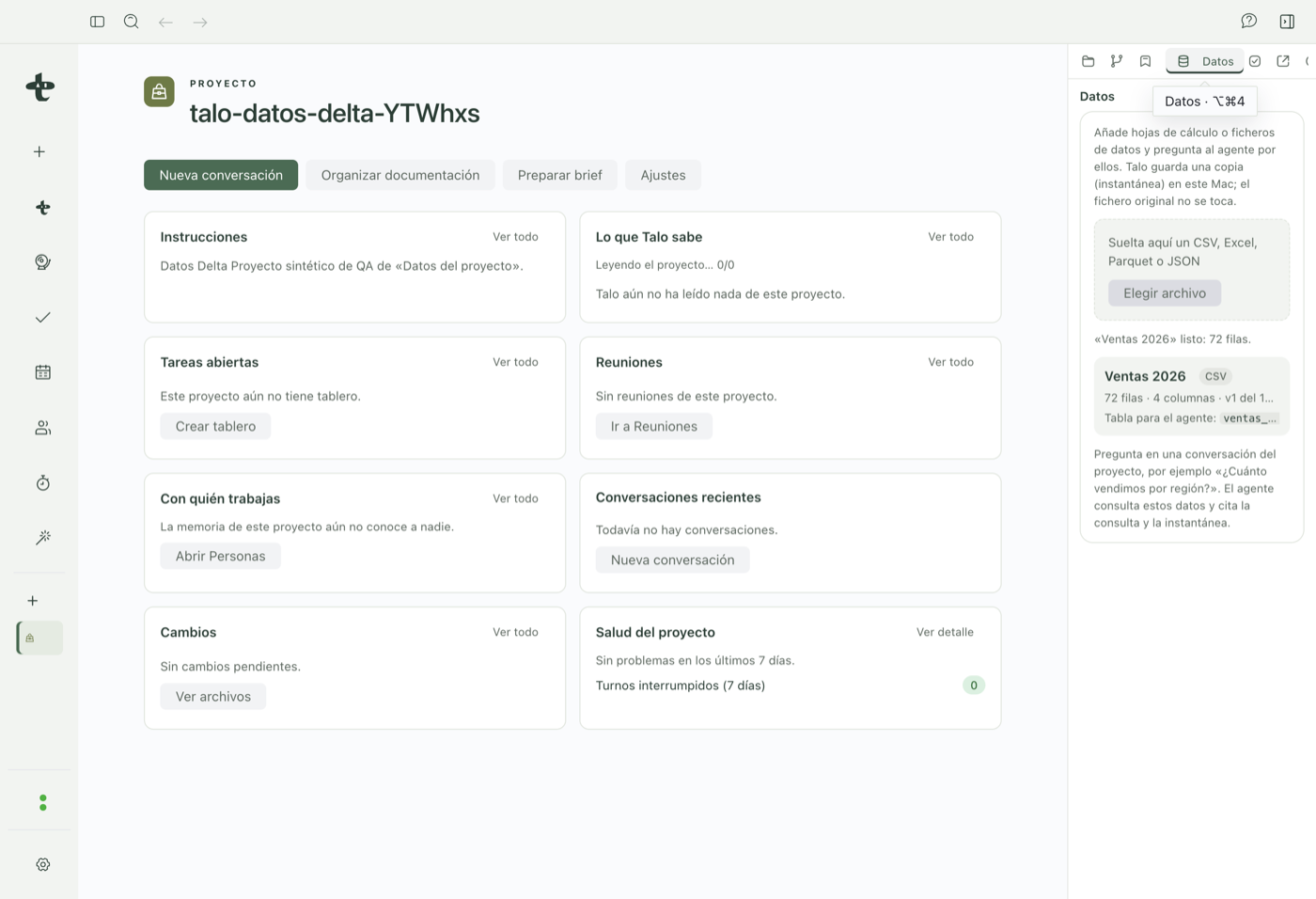
Each file or each table you pick becomes a source, with its own column list, data type, percentage of empty cells, and a sample of rows.
Spanish-format CSV
If a CSV uses ; as the separator, Talo detects it on its own and converts the common Spanish format in the same step: comma decimal, thousands dot, %, €, negatives in parentheses, and dd/mm/yyyy dates. It only converts a column when 100% of its values match that format. If there's any doubt, it leaves the column as text instead of guessing. The source's detail shows which format it detected, with a "Change" button in case you prefer another.
Excel: every sheet, not just the first
Every sheet in the file that has data is imported as its own source (hidden, empty, or chart-only sheets are skipped). If the Excel file has more than one sheet with data, each source is named "File name - Sheet name", so they don't get mixed up. If the file changes and you click "Refresh", Talo rereads only that sheet.
Connect a database
From "Connect database" you can set up a connection to PostgreSQL or MySQL. Access is always read-only, in three layers: Talo only allows a SELECT statement, opens a real read-only transaction against the server, and limits rows and query time. Neither the agent nor a malicious query can write, delete, or change anything in that database.
- Fill in the connection form and click "Test connection". Talo lists the available tables and views.
- Pick a whole table, or write your own read-only SQL query.
- Confirm: a source gets created, with a snapshot of the data on this Mac (up to 200,000 rows).
Credentials are stored in macOS's system keychain, never in the project catalog or a text file. You can schedule an automatic snapshot refresh with a time expression, just like an automation.
Note
Every refresh of a database connection creates a new snapshot, even if the data hasn't changed. Unlike a file, there's no cheap way to check "this is identical to before" without pulling the data anyway.
Asking the agent
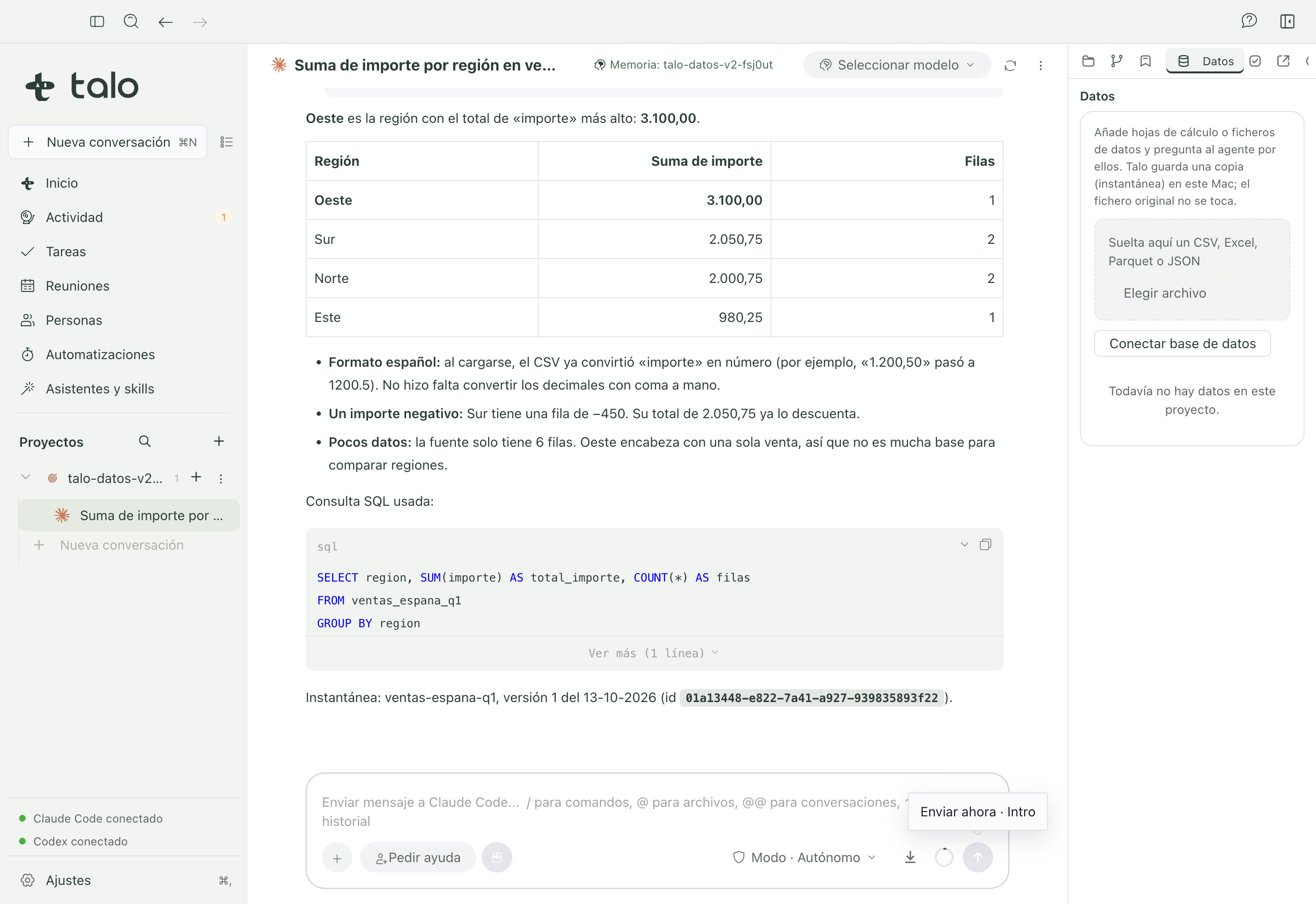
Ask the agent about your data the way you'd ask a colleague: "how much did we sell by region last quarter?", "what's the executed budget for the Construction phase?" The agent queries the most recent snapshot of whatever source it needs and answers with:
- The exact figure, never an estimate.
- The SQL query it used, so you can review it.
- Which snapshot it cited (source, version, and date).
- When it makes sense, a chart with that same data.
Read-only, for the agent too
An attempt to write, drop a table, or read a system file through SQL is always rejected, whether the agent tries it or someone tries to sneak those instructions inside a document. The read-only guard lives in the data engine, not in what the agent "decides" to do.
Memory paused means no data tools
If you pause a project's memory, the agent also stops seeing the "Data" tools. It's consistent with pausing, but worth knowing if you expect an answer with figures and it doesn't come.
Delete a source or a snapshot
From a source's detail you can delete an old snapshot or delete the whole source. If you delete the entire project, its imported data is deleted with it.
For questions that combine this data with meetings or tasks in a single view, see Dashboards.