

Talo Guide
Tasks
The kanban board for each project, the text file behind it, and how to ask Talo to work on a card or propose the entire board.
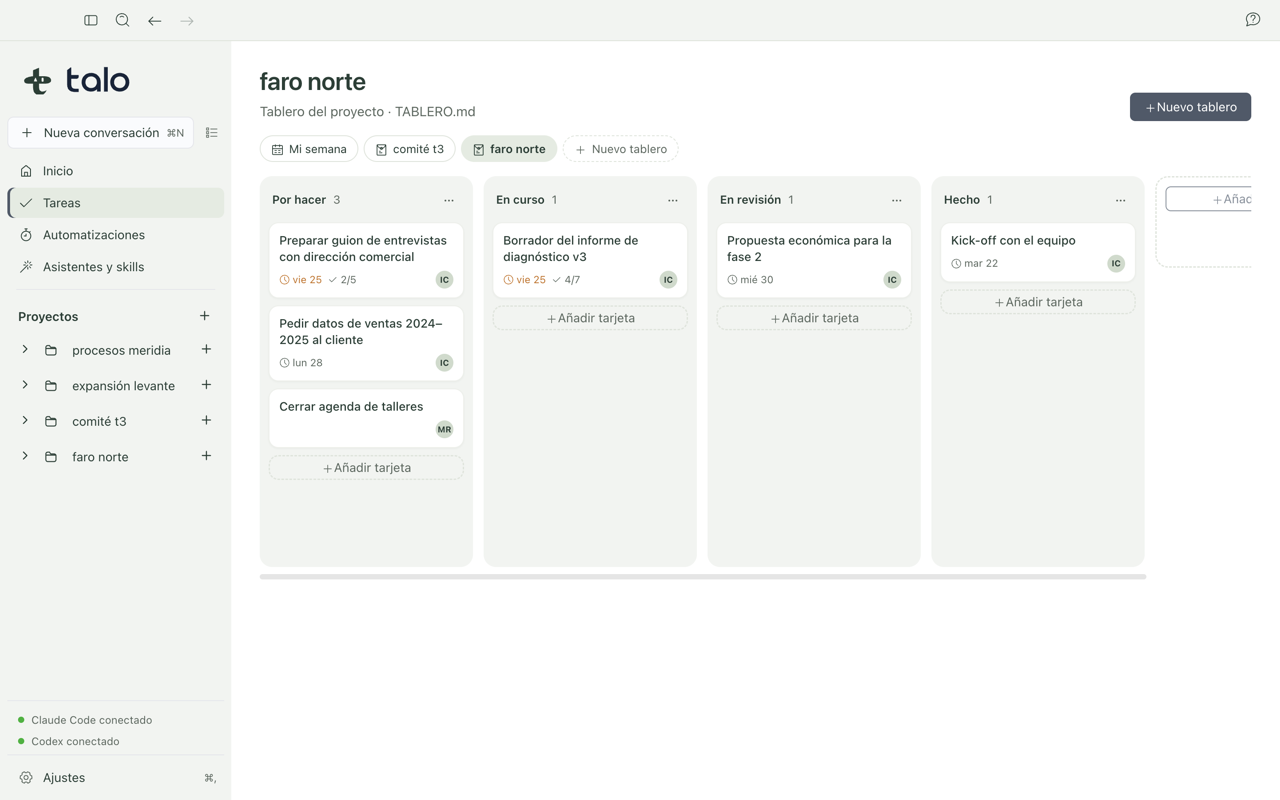
Tasks is the kanban board for each project: columns with cards representing pending, in-progress, and completed work. It's not a separate view invented by Talo; everything you see lives in a normal text file inside the project folder, so it survives Talo and you can open it with any other tool.
In Home, "My week" brings together cards with due dates from your projects. If there are no upcoming deadlines, the card might appear empty; open a project to work with its full board.
The board: columns and cards
When you open Tasks in a project without a board, you can choose between:
- A consulting template, which creates the columns Preparation, Interviews and data, Analysis, Report, and Done.
- A blank board, with the columns To do, In progress, In review, and Done.
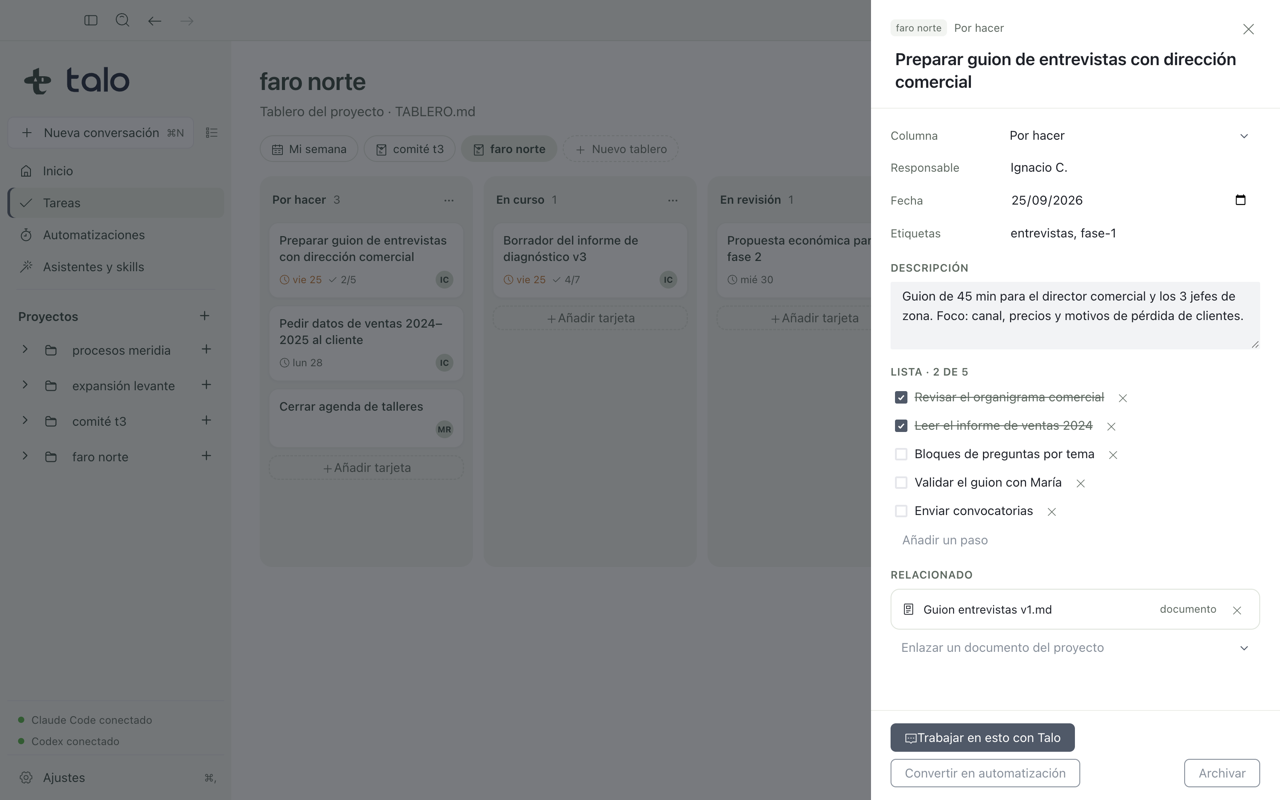
You can move cards between columns by dragging with the mouse, or using just the keyboard. Focus the card, press spacebar, move with arrow keys, and press spacebar again to drop it; Escape cancels the move. When you open a card's details you can change its title, assignee, date, labels, and description; you can also add, rename, and move columns.
A real file: TABLERO.md
Everything on the board is saved in a file called TABLERO.md, in plain text, at the project root. It's not a black box. You can open it with any text editor, see it if the project lives in a repository and you run git pull, and it persists even when you close Talo. It's the same format used by Obsidian's Kanban plugin, so if you open the project folder as an Obsidian vault, you see the same board with the same columns and cards.
Because it's a real file, it can change outside Talo. Someone edits it in Obsidian, a git pull arrives, or the assistant reads it. Talo reads it again automatically in seconds or when you return to the window. If you save a change of yours just when the file has changed outside, Talo tries to apply your change over the new version and warns you; if that's no longer possible, the file version wins and it tells you so, so you never lose work without knowing.
Note
What Talo doesn't understand in a TABLERO.md written by hand or another tool stays untouched and isn't deleted. It's preserved as-is, even if you move or edit other cards.
Ask Talo
In Tasks you can hand off work to the assistant at two moments: to build the entire board from a project document, or to move a specific card forward with its help. In both cases the assistant proposes and you decide. It never writes TABLERO.md on its own.
Create the board from meeting notes
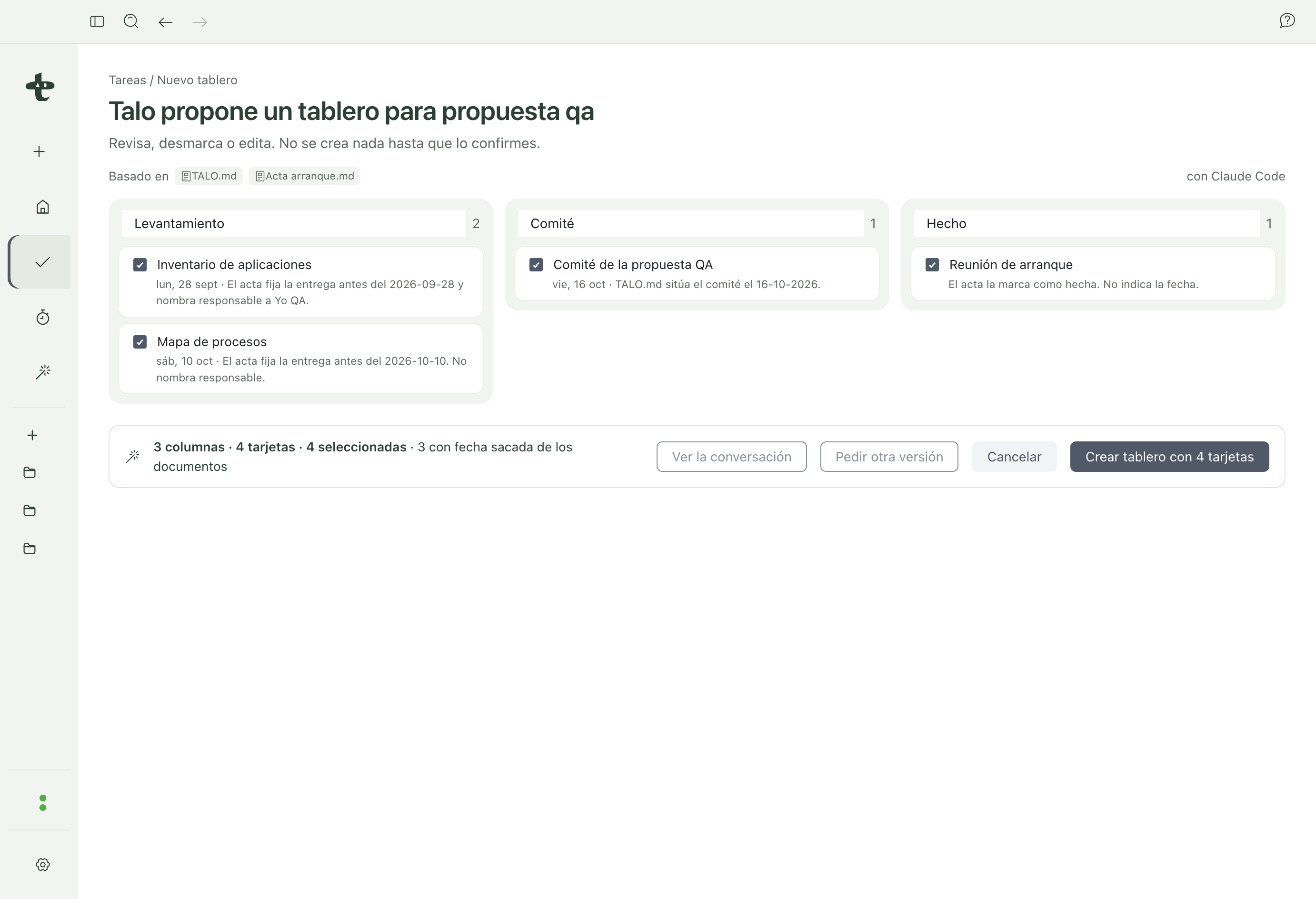
If the project has a kickoff meeting note, choose "Ask Talo", mark the document you want it to use, and wait. The assistant returns a proposal of columns and cards. Each card cites the document it comes from, preserves the meeting dates, and explicitly says when there's no clear assignee instead of making one up. You can uncheck or edit any card before continuing. Only when you click "Create board" does TABLERO.md get written, and only with what you left marked.
Important
If you exit the proposal without clicking "Create board", no file is created. Nothing the assistant proposes on this screen is saved until you confirm it.
Work on a card with Talo
From a card's details, "Work on this with Talo" opens a new conversation with that card's context: its title, column, date, assignee, labels, description, and related items. The card stays linked to that conversation so you can return to it. The initial message asks the assistant not to edit TABLERO.md directly but to propose it to you, and Talo also prevents it technically. If the assistant tries to write the board, it's denied. What the assistant suggests about that task comes back as a normal conversation, and you're the one who moves what you decide to the board.
It's the same principle that governs Automations and change review: the assistant proposes, never writes on its own what actually changes your project.
Next steps
- To see step-by-step how to build a board from kickoff notes, see the recipe Create a board from meeting notes.
- To see how to hand a specific task to the assistant, see the recipe Ask Talo for a task.