

Talo Guide
Feedback
How to send feedback or report a problem from Talo, and what happens next.
If something doesn't work or you want to suggest an improvement, you can report it without leaving Talo. The process has three steps and always shows you exactly what you are about to share before you share it.
How to send it
- Open "Report a problem" from the top bar of Talo.
- Write your feedback and, if you want, attach a screenshot.
- Click "Review what will be sent" to move to the review.
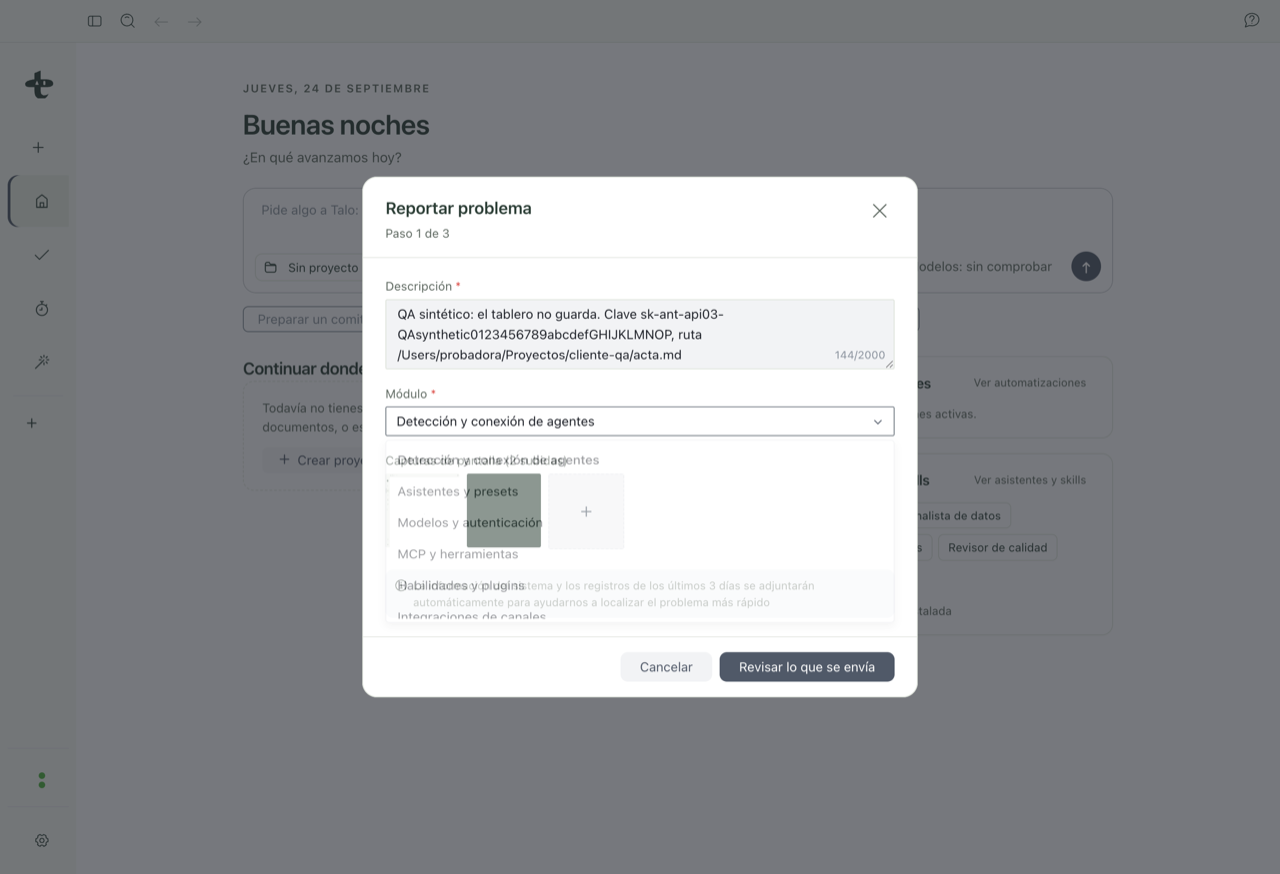
Review what will be sent
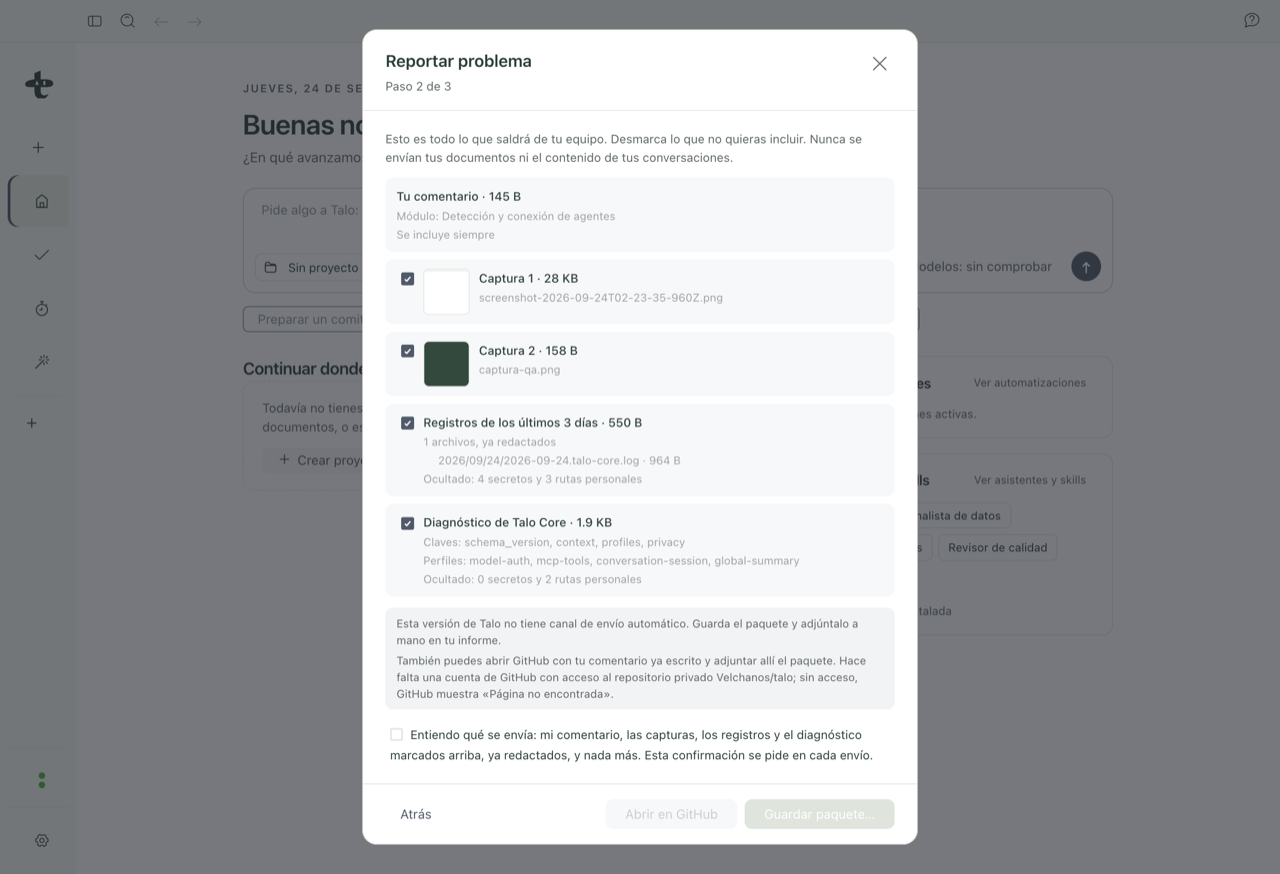
Before anything leaves your Mac, you see a complete list of what would be included: your feedback, thumbnails of attached screenshots, technical logs (with the name and size of each file), and a different diagnosis by key. Each item has its own checkbox, so you can remove anything you don't want to share. You never see the lines of a log or the actual values of a diagnosis: attaching diagnosis is always optional.
Any key, token, or path with your username that appears in that content is automatically hidden before being shown in the review. You will see a notice like "Hidden: N secrets and M personal paths" when that happens.
Important
Nothing is sent without you checking the consent box on this screen. If you go back and come back to review, you have to check it again.
What happens next
In this beta, Talo still does not send the report automatically to its own server: the real path is one of these two, both available after you check consent.
- Save package… saves on your Mac a compressed file with your feedback, screenshots, logs, and diagnosis, all ready to go, and opens it in Finder so you have it handy.
- Open in GitHub opens in your browser a new issue already filled with your feedback, in the project's repository. If your account does not have access to that repository, GitHub will show you "Page not found"; it is a GitHub permissions limit, not a Talo failure.
Note
If there is no send channel set up, Talo tells you before you get to this point and never claims something "has been sent" when it really could not. You will always see the real result of the attempt.
To understand why Talo asks for confirmation at each step and what happens with your data in general, see Privacy and security.