

Talo Guide
Video notebook
Drop a video or audio file in a project and Talo transcribes it, reads what is on screen and saves it to the memory, with citations that open the exact minute.
About the screenshots in this guide
Every screenshot in this English guide is a real capture of Talo, currently shown with the Spanish interface (the English interface is on its way). Menus, buttons and labels in the pictures are in Spanish; the surrounding text describes what each one does in English.
A meeting recording, a recorded demo or a class hold information that is in no document. When a video or audio file joins a project, Talo prepares a video notebook for it: the transcript with speakers and timestamps, the key frames with the text shown on screen, a summary with chapters and, above all, it puts all of it in the project memory so you can ask "at what minute did we talk about the budget?" and open the player right there.
How a notebook starts
You do not have to ask: the notebook starts on its own when the file joins a project.
- In the project chat: drop the video on the message box and choose "Attach to message", or add it with the files button.
- In the project's files panel: drop it in a folder; Talo copies it there, like any file, and prepares its notebook.
- When organizing documents or importing a project: videos and audio files that come in that way get one too.
- A video that was already in the project: open it in the side panel and press "Create video notebook".
Formats: mp4, mov, m4v, webm, mkv, avi and, audio only, m4a, mp3, wav, aac, flac, ogg and opus. There is no size limit: a one-hour, 600 MB recording works the same as a one-minute clip.
Note
Talo does not copy a video you drop in the chat: the notebook points at the file where it is, on your disk. If you later move or delete it, the transcript stays in the memory, but the player can no longer open it.
What Talo does in the background
A card with the progress shows up above the message box, and the same detail appears when you open the video in the side panel:
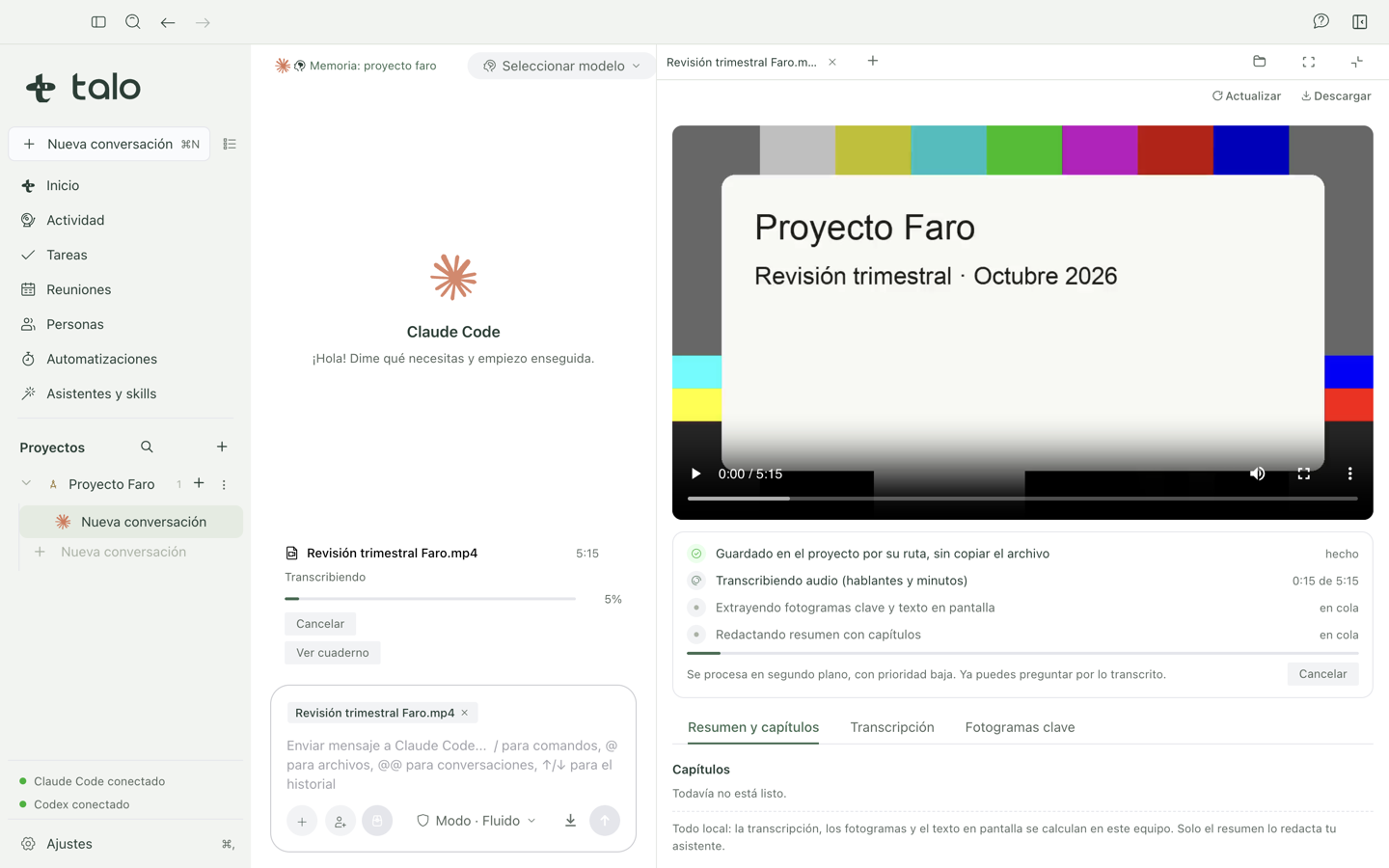
- Transcribes the audio with speakers (labelled "Hablante 1", "Hablante 2") and timestamps, with the same local engine as Meetings. The first time it downloads the transcription model (about 600 MB, once for all of Talo).
- Takes the key frames: one each time what you see changes, like a new slide.
- Reads the on-screen text of those frames, with the same image text reader used for scanned PDFs.
- Writes the summary with chapters and the action items, with your assistant.
It runs at low priority, one file after another, without slowing down the rest of Talo. Meanwhile you can already ask about what it has transcribed. Cancel stops at any step and keeps what is done; Resume continues from there. If you close Talo halfway, it continues from the last finished step when you open it again, without starting over.
The notebook
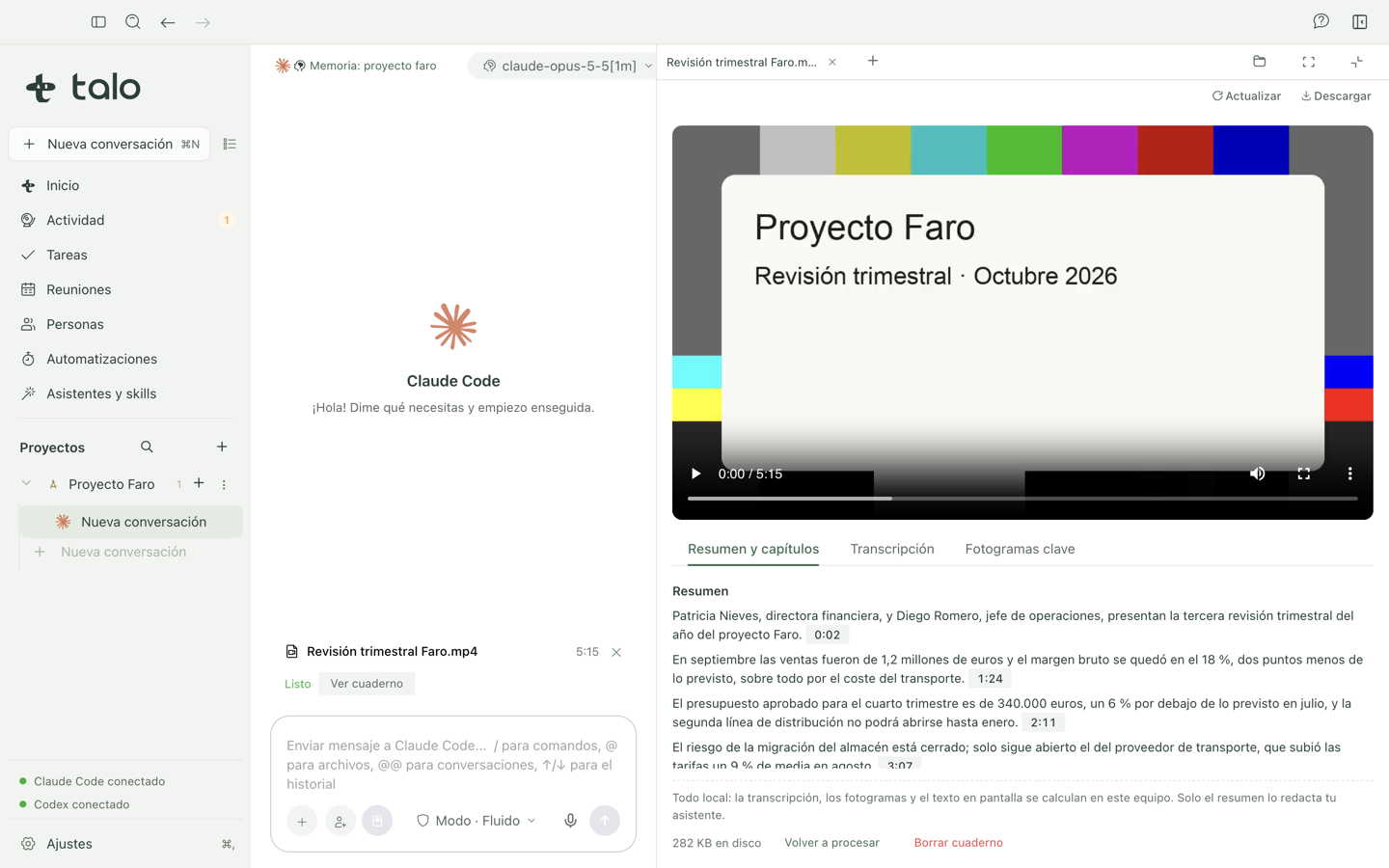
Press "Open notebook" on the card, or open the video from the files panel. The player is on top; below it, three tabs:
- Summary and chapters: a few sentences with what matters, the chapters ("0:00 Opening", "2:08 Q4 budget") and the action items.
- Transcript: what was said, by whom and when; the line being played is highlighted.
- Key frames: the images with the text read on each one.
Every time you see is a link: press it and the player jumps to that moment.
Asking about a video
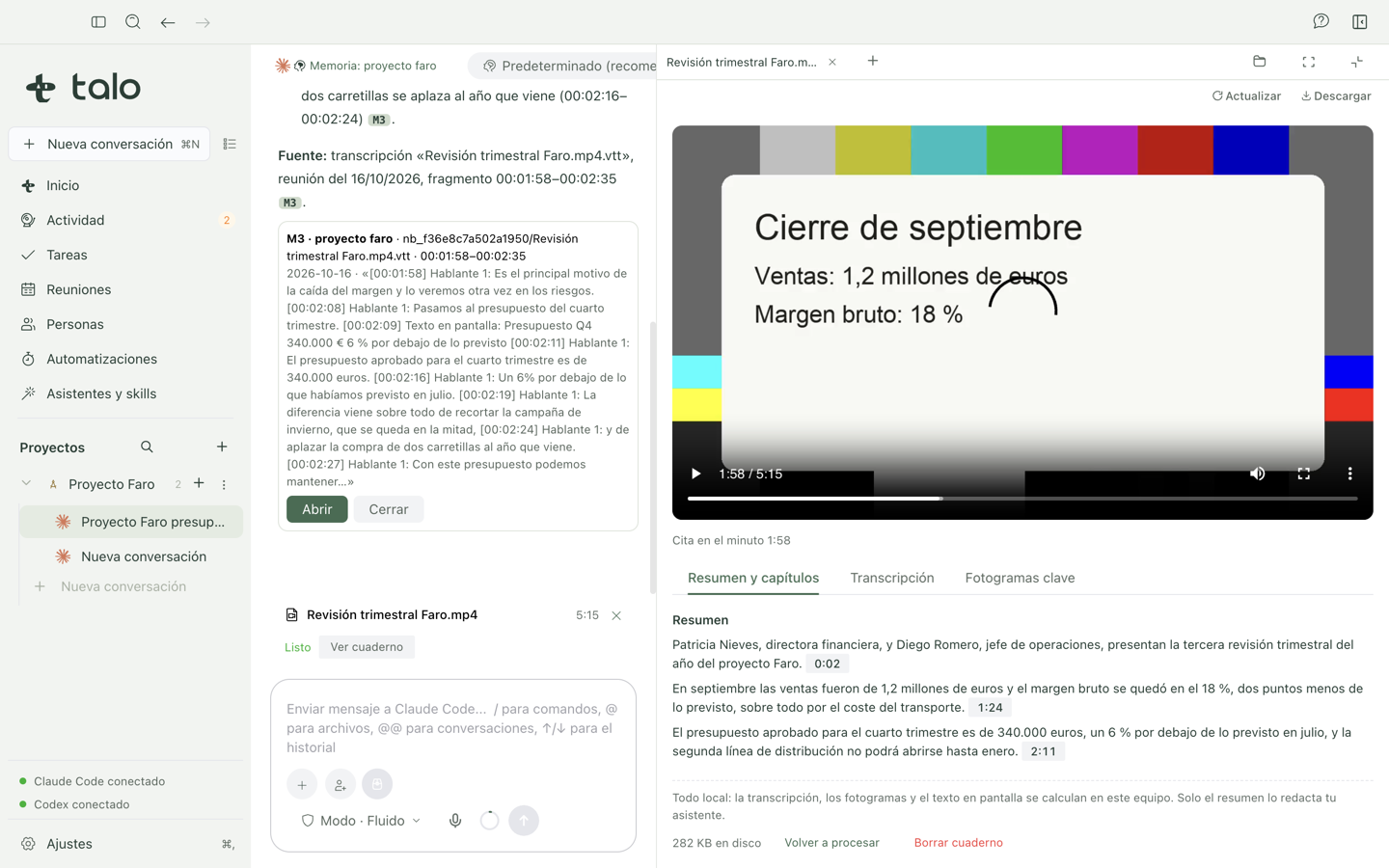
The notebook is part of the project memory, so there is no need to attach the video again. In any conversation of the project you can ask:
- "At what minute did we talk about the fourth-quarter budget?"
- "Who said that risk B was closed?"
- "What project code was on the last slide?" (even if nobody said it out loud, it was read on screen)
The answer cites its source with a mark like [M1]. Opening the citation opens the player at the exact minute of that fragment.
Privacy and disk space
- The transcript, the key frames and the reading of on-screen text happen on this Mac: the video never leaves your computer.
- The summary with chapters is written by your assistant from the text of the transcript, like Meetings notes. If your assistant is not available, the chapters come from the slides and from what is said, without a summary.
- What Talo generates (transcript, key frame thumbnails) is kept in Talo's data, never inside your folder. The notebook shows how much space it takes; Delete notebook removes only that, never the original video, and Process again redoes it.
Limits of this version
- Local transcription and on-screen text reading work on Mac. They will come to Windows later.
- YouTube, Loom or Drive links cannot become a notebook yet: the file is needed.
- Exporting a clip of a fragment will come later.
To read videos, Talo includes FFmpeg under the LGPL license, as a separate program; its license and source code are listed in "Settings" → "About Talo" → "Credits".