

Talo Guide
Browser
How Talo uses a browser within your project and how the permission system works before each action.
Talo includes a browser right inside the app: you can open web pages in a tab, alongside your documents and conversations, without leaving the app. Your assistant can also use it (for example to research a website, fill out a form, or download a report), but only when you allow it, action by action.
Open a tab
In the project's content panel, tap "+" → "Browser" to open a web tab. It works like a normal browser tab: you can navigate, sign in, and download files, which are saved to the project's "downloads" folder.
Browser sessions separated by project
Each project has its own browser session. If you sign in to a website within a client project, that session isn't visible from another project: you'll have to sign in again in each one. Tabs you open outside any project use a separate general profile, which keeps its sessions even when you update Talo.
If you delete a project, Talo deletes only that project's browser session. If you want to clear everything at once, use "Clear browser data", which affects all projects and also the general profile.
Let your assistant browse for you
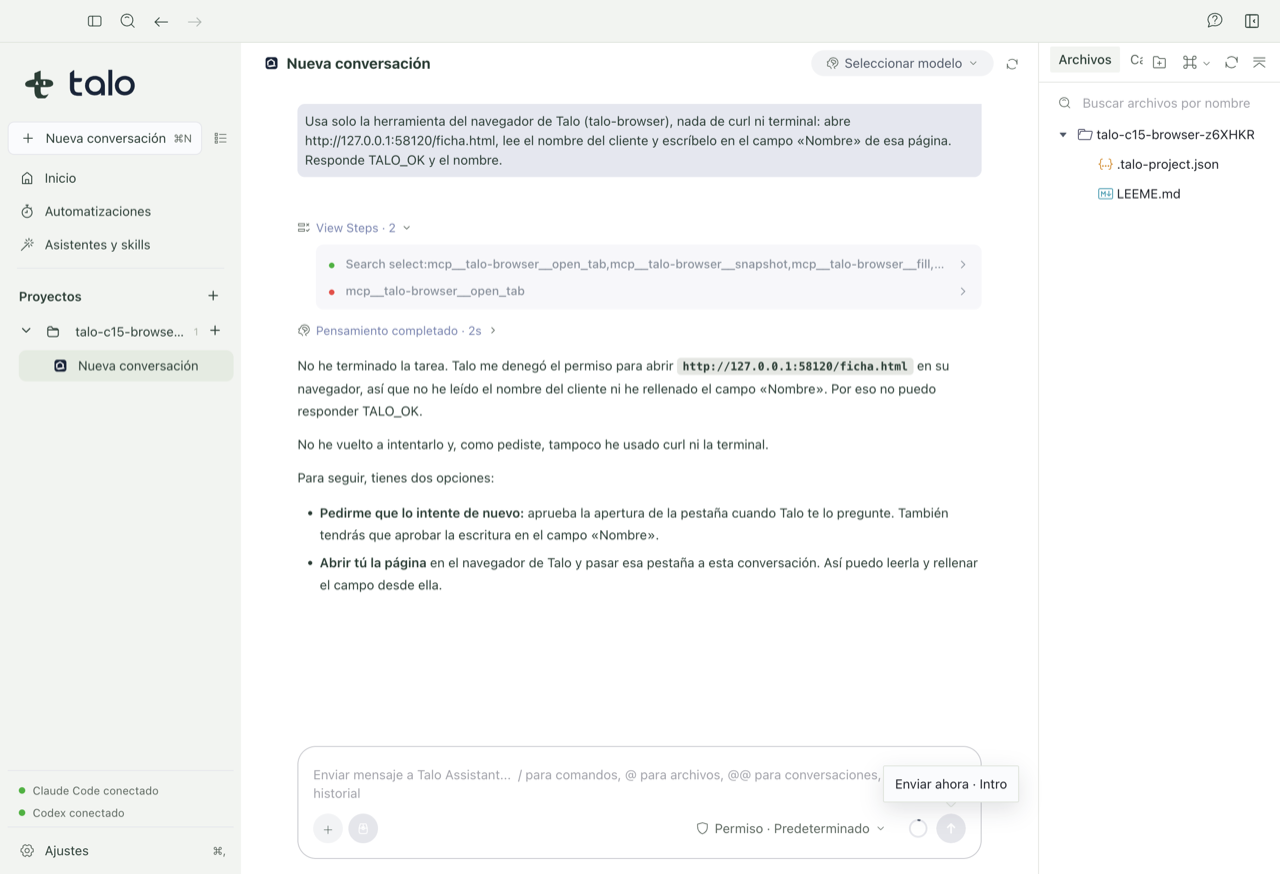
In a conversation with a Talo assistant, the browser is included automatically (you can check it in "+ → MCP"); in a conversation with your own assistant or the basic assistant, it isn't. When it's available, your assistant can read a page, fill out a form, choose an option, submit it, and tell you the result, but never without your approval first.
Important
The browser never acts on its own. Before each action (reading a page, typing in a field, clicking a button, downloading something) a system notice appears that you have to approve, one at a time. If you don't respond in two minutes, Talo treats it as denied.
What the permission notice tells you
Each notice starts by saying who's asking: the conversation you're in, or an automation and, in parentheses, the conversation that launched it. Below you see the full address of the page and the exact action, described in your words (for example "type 'Luis' in the text box 'Name'"), and never the content of a password field.
If you already approved a read on that same conversation, tab, and page, Talo won't ask you again while the conversation lasts. But typing something, clicking a button, or submitting a form always asks for permission again, even if you just approved a read. And if the page changes between when you approve the action and when it runs, Talo cancels it rather than risk acting on something different from what you saw.
Each conversation sees only its own tabs
An assistant can only see and use tabs that it opened itself. It doesn't see yours or those from another conversation, even if they're open at the same time; for example, it can't read your email if you have it open in another tab. If you want to share one of your tabs with a conversation, use the "Just you" control in the browser toolbar and choose "Give to this conversation"; you can take it back anytime with "Take back from agent". When you restart Talo, all tabs go back to "Just you".
For a complete example of a web research done by the assistant, with permissions included, see Web research with the browser.