

Talo Guide
Web research with the browser
How to ask the assistant to research the web within your project, approving each action one at a time.
You need to gather public information about a competitor or a topic for the client. You can do it without leaving Talo: the assistant browses within the project, but asks your permission before each action, not just at the start.
Steps
- In the project's content panel, open "+" → "Browser". A web tab opens inside Talo,
next to your documents.
- In a conversation with a Talo assistant from that project, ask for something specific:
"go to [competitor]'s website, look at their pricing page and give me a summary of their plans". The Talo browser is attached by default to Talo assistants, so no need to activate anything else.
- Before the assistant reads the page, types in a field, or clicks something, Talo shows
you a single native dialog per action. The notice says who's asking (the conversation you're in) and what exact action it will do, with the full page address.
- Review the notice and decide: "Allow" or "Deny". If you don't respond in 120 seconds,
it denies itself and the assistant knows, so it doesn't just sit waiting.
- If you allowed a read, that approval counts for the rest of the conversation on that same
tab and origin: it won't ask you again to keep reading there. If the assistant wants to type something (for example, fill in a search box), it asks again, even if you'd approved reads before.
- If you ask it to download a report or file, the download is saved to the project's
downloads folder, not your general Downloads folder.
- Ask for the final summary and paste it or ask the assistant to leave it in a project
document so you don't lose it.
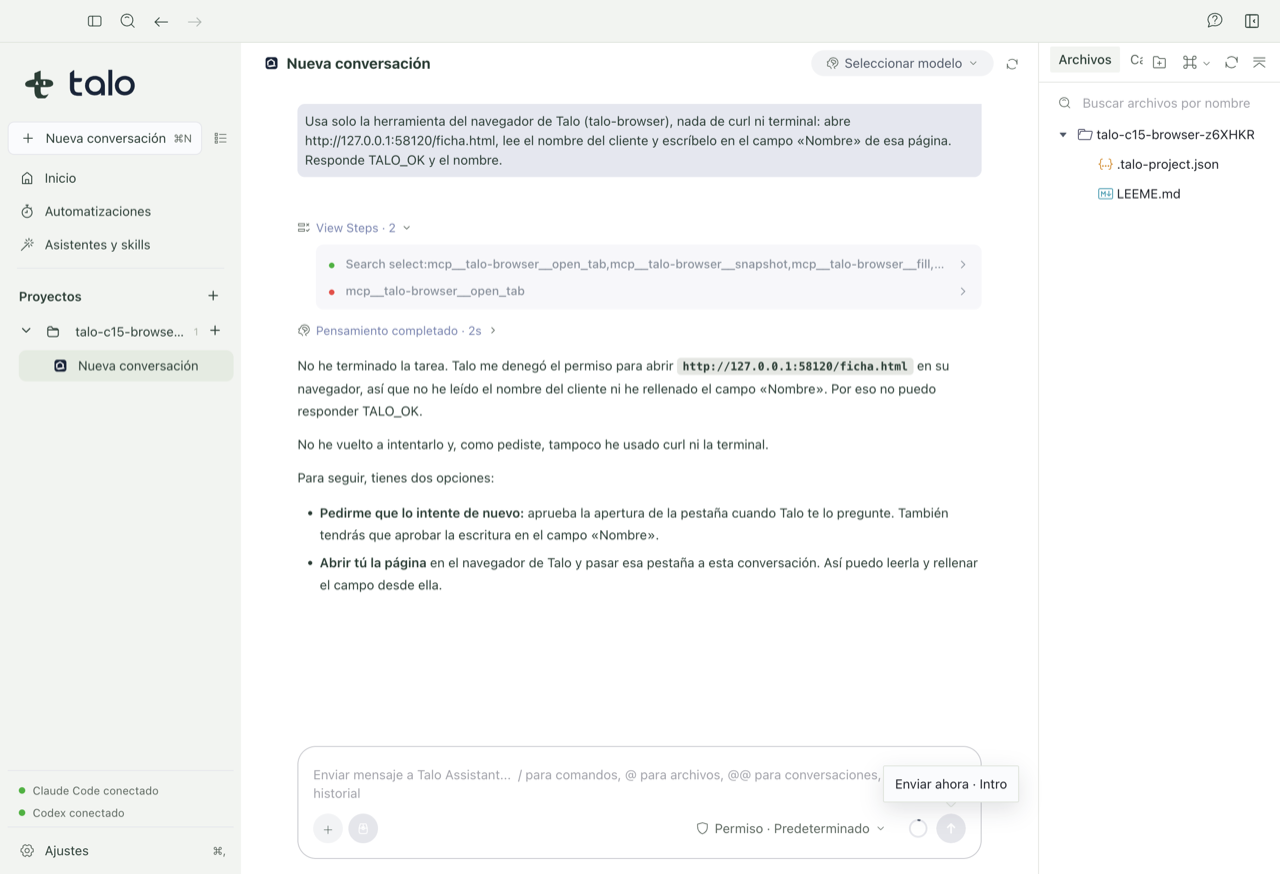
Permission is per action, not once for the whole session
Every click, every field the assistant fills, and every download it does goes through a native dialog you have to approve. There's no switch to "trust the assistant for the whole research": that's on purpose, so you can stop anytime if something doesn't sit right.
The session you open on a website within this project doesn't share with other projects: if you research the same website for two different clients, each one has its own session, no mixing. More context on this in Privacy and security.