

Talo Guide
Troubleshooting
What to do about common problems with agents, tools, and automations in Talo
When something fails, keep the project and its files as they are until you understand what happened. Talo usually warns you before overwriting changes, but it's good to check the file state on disk and save a copy if you need to investigate a possible data loss.
An agent (Claude Code or Codex) appears without a session or asks to reconnect
It's normal if it's been a while since you opened Talo, or if you logged in from the terminal and the session expired. The sidebar footer and Settings › Agents and models show the real status of each agent after a local check, not a guess.
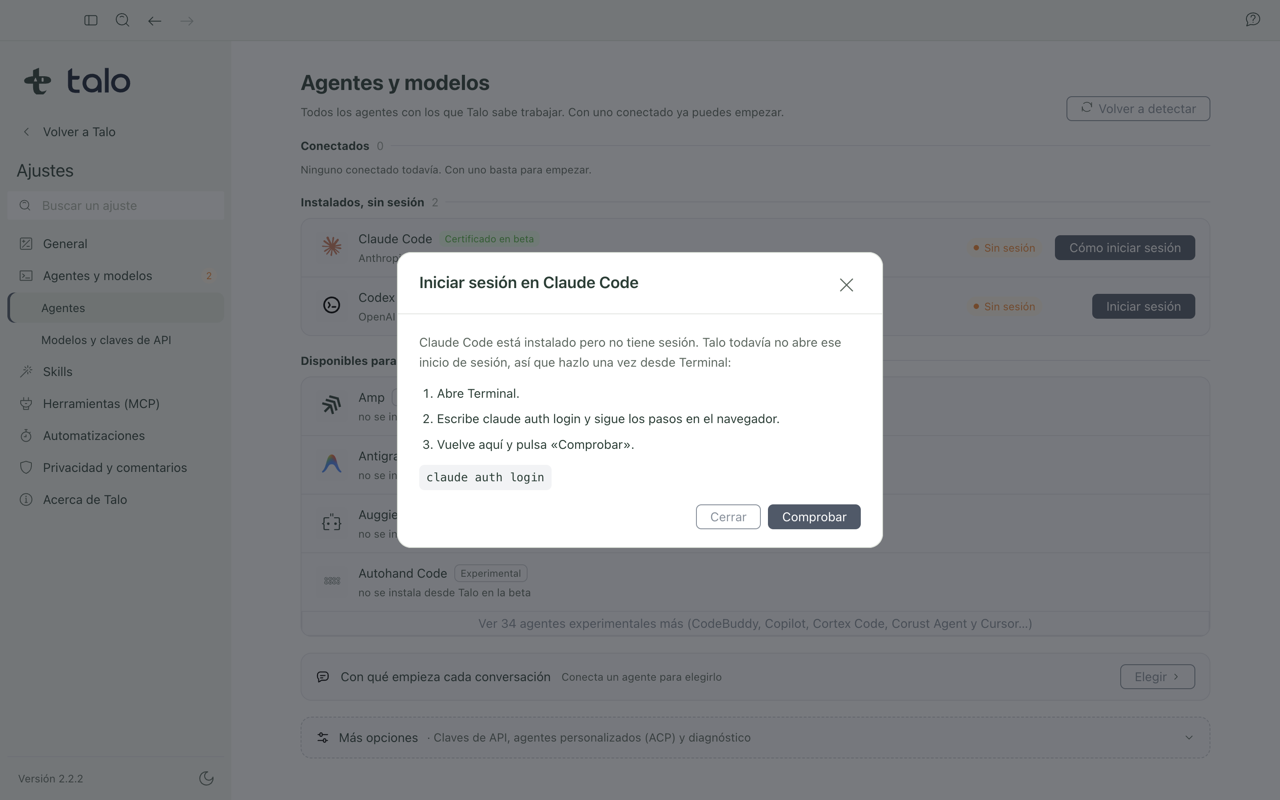
What to do: go to Settings › Agents and models. If it's Codex, click "Sign in" and complete the process without leaving Talo. If it's Claude Code, click "How to sign in". It gives you the command claude auth login to paste in Terminal and a "Check" button when done. If you just signed in on your own outside Talo, use "Detect again" to update the status without restarting the app. More in Settings.
The assistant's CLI isn't installed
If Claude Code or Codex disappear from the system (for example, after reinstalling macOS or switching accounts), Talo detects it and blocks sending instead of leaving you stuck, with clear instructions on what to do.
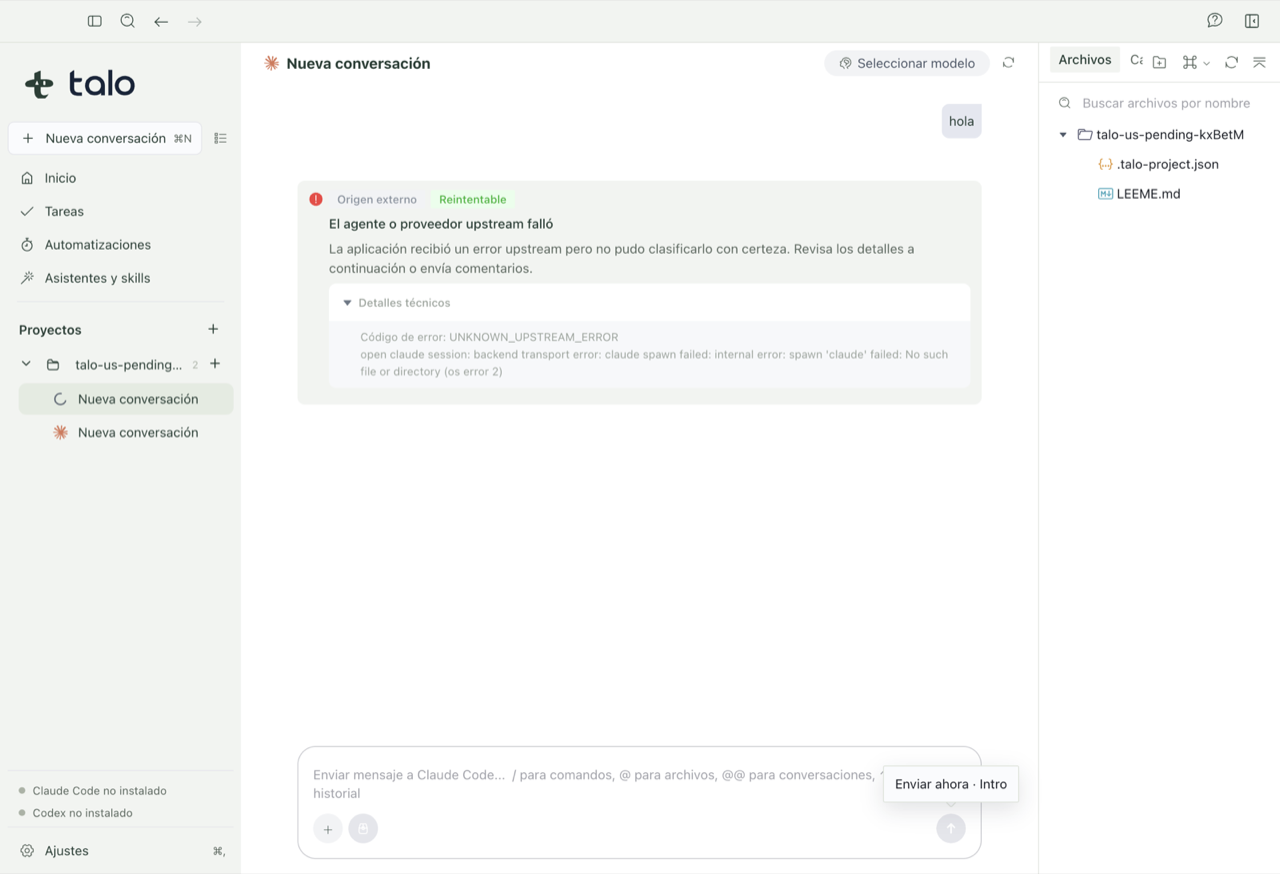
What to do: go to Settings › Agents and models and click "Install" for the agent that's missing. Talo installs it in its own folder, no terminal or admin password needed. (Codex needs Node.js installed. If you don't have it, it directs you to the official Node website instead of installing it on its own.) If you already had the agent installed yourself, Talo uses that installation once it detects it again.
The MCP tool registry doesn't respond
When searching for a new tool in the official registry, the service may be down or slow at that moment.
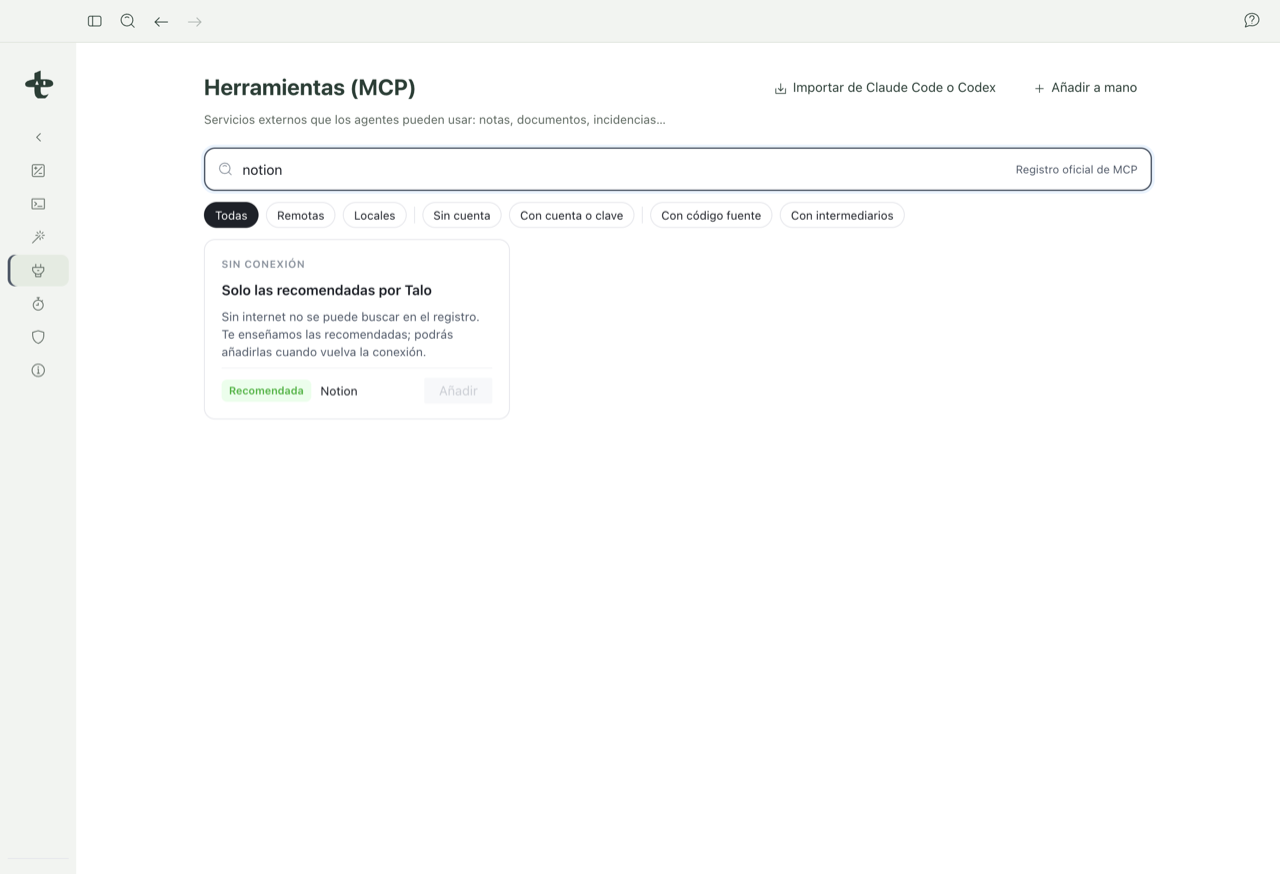
What to do: if you see "Registry not responding", click "Retry". If Talo has a good cached copy from up to 7 days ago, it serves it with the date. If there's no connection at all, you'll see "No connection · Only recommended by Talo" and you can keep using tools already installed and Talo's recommendations for consulting. Nothing else needs doing. No configuration is lost. More in MCP tools.
An automation has changes pending review for a long time
If an automation finished and left changes unapplied, those changes stay in a separate copy until you decide what to do, and don't expire overnight.
What to do: open the run in Automations and click "Review changes". Look at the diff of each file (or the preview if it's a document) and click "Apply" or "Apply all" if you want to bring it to your real project, or "Discard" if it doesn't work for you. If you let time pass, Talo warns when less than 24 hours remain before the review expires. After 7 days without deciding, it's marked "Expired" and the copy deletes itself. If a chained task is waiting, it won't start until you resolve this review. More in Automations.
A skill doesn't seem to apply in the conversation
If you installed a skill but the assistant doesn't seem to use it, it's almost always about where it got installed.
What to do: check in Settings › Skills whether you installed it "In Talo" or just in a specific project. If you added it to a project, only conversations in that project see it. If you installed it for an agent in general, open its editor and confirm the skill is turned on there. If the copy appears as "Modified outside Talo", remember that Talo never updates or reverts it on its own. You'll need to manage it by hand. More in Skills.
The whiteboard asks to recover a draft after unexpected close
If Talo closed (or your Mac closed) while you had unsaved changes on the whiteboard or in a document, when you open it again it asks what to do instead of deciding for you.
What to do: choose "Recover draft" if you want to continue with those changes, or "Discard" if you prefer to start from the last save. Talo never applies anything to the file on its own at this step. If the file also changed from another app while it was open, you'll see a conflict warning instead of it overwriting on its own. More in Documents, diagrams, and whiteboard.
A board doesn't reflect a change made from Obsidian or outside Talo
BOARD.md can be edited from multiple tools at once (Talo, Obsidian, a git pull, the agent itself), and Talo is designed to coexist with that.
What to do: if you just edited the file outside Talo, give it a few seconds or switch back to the Tasks window. Talo rereads it on its own. If the file changed just while you were saving something in Talo, you'll see a conflict warning. Talo tries to reapply your change on top of the new version, and if it no longer fits, it warns and sticks with the file version to not lose what was outside. More in Tasks.
If none of this fixes it, tell us from Feedback with as much detail as you can: what you expected to happen and what actually happened.