

Talo Guide
MCP Tools
What an MCP tool is, how to search for it in the official registry, and what happens if the registry doesn't respond.
An MCP tool is a connector that gives your assistant a specific capability beyond conversation: for example, query your Notion pages, generate an image, or search an external registry. You decide which tools each assistant has available, and you can always see if they're working.
The tools Talo includes
Talo comes with two built-in tools: Talo's Browser (so the assistant can browse the web with you) and Image Generation. You'll see them marked as "Included in Talo" in Settings › Tools, with their real status:
- "Working" or "Connected": everything's good.
- "Not responding": something's wrong; you have a "Retry" button to check.
- "Model required" (in Image Generation): you need to pick a model before you can use it.
Talo's Browser is available for Talo assistants, not all conversations. Built-in tools can't be removed. You can only test or disable them.
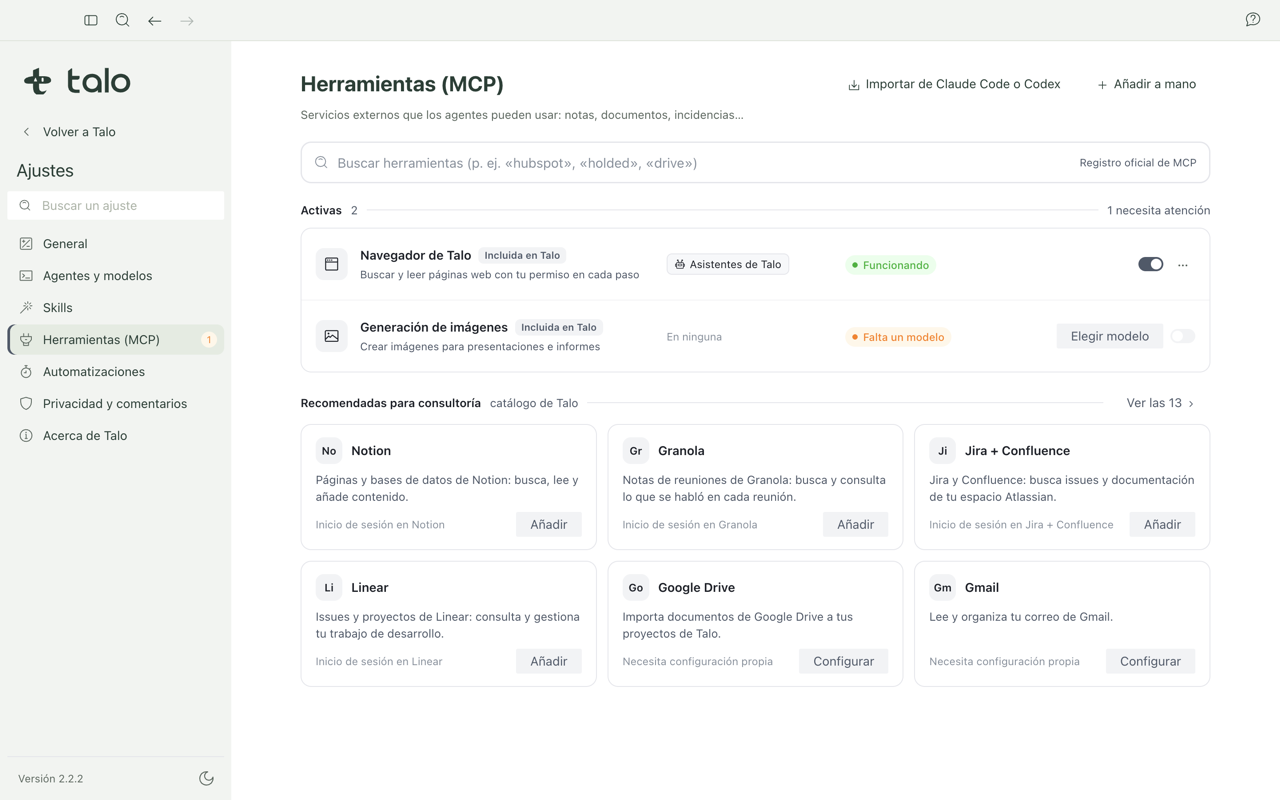
Add a recommended tool
For common consulting tasks, Talo suggests recommended connectors (like Notion).
- Go to Settings › Tools › "Recommended for consulting".
- Click "Add" on the connector you want.
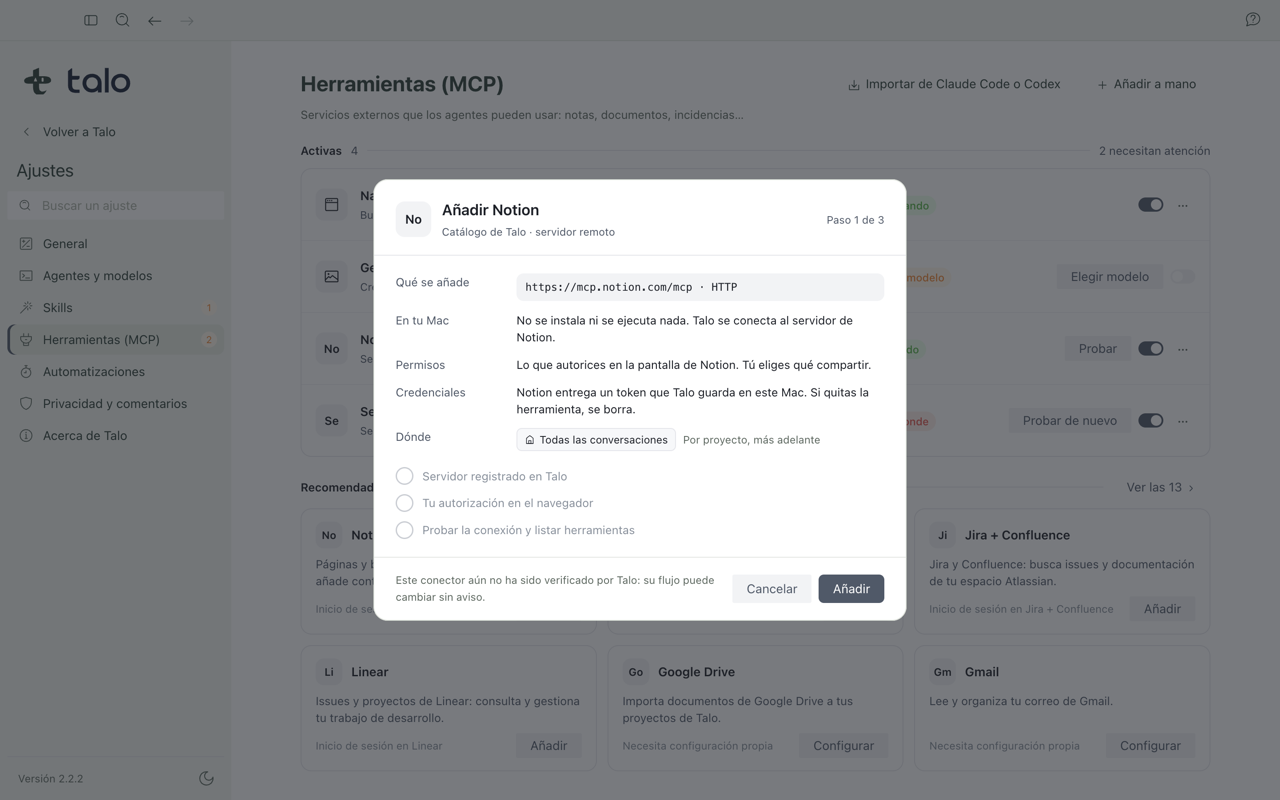
- Read the sheet that appears. It tells you what will be added, what runs on your Mac, what permissions and credentials it asks for, and where they're stored.
- Follow the authorization steps shown (usually you sign in in your browser).
- Talo tests the connection automatically. If the test fails, the tool stays off with "Retry"; if it succeeds, it becomes "Connected" and its functions reach your conversations.
If the session expires later, you'll see "Session expired" with a "Reconnect" button.
Important
Adding a tool is always your decision. Talo shows you first what gets installed, what runs on your Mac, and what permissions it asks for, and only acts when you confirm. An assistant can suggest a tool, but never adds it on its own. A person always has to confirm.
Search for a tool in the official registry
If what you need isn't among the recommended ones, you can search the official MCP tools registry.
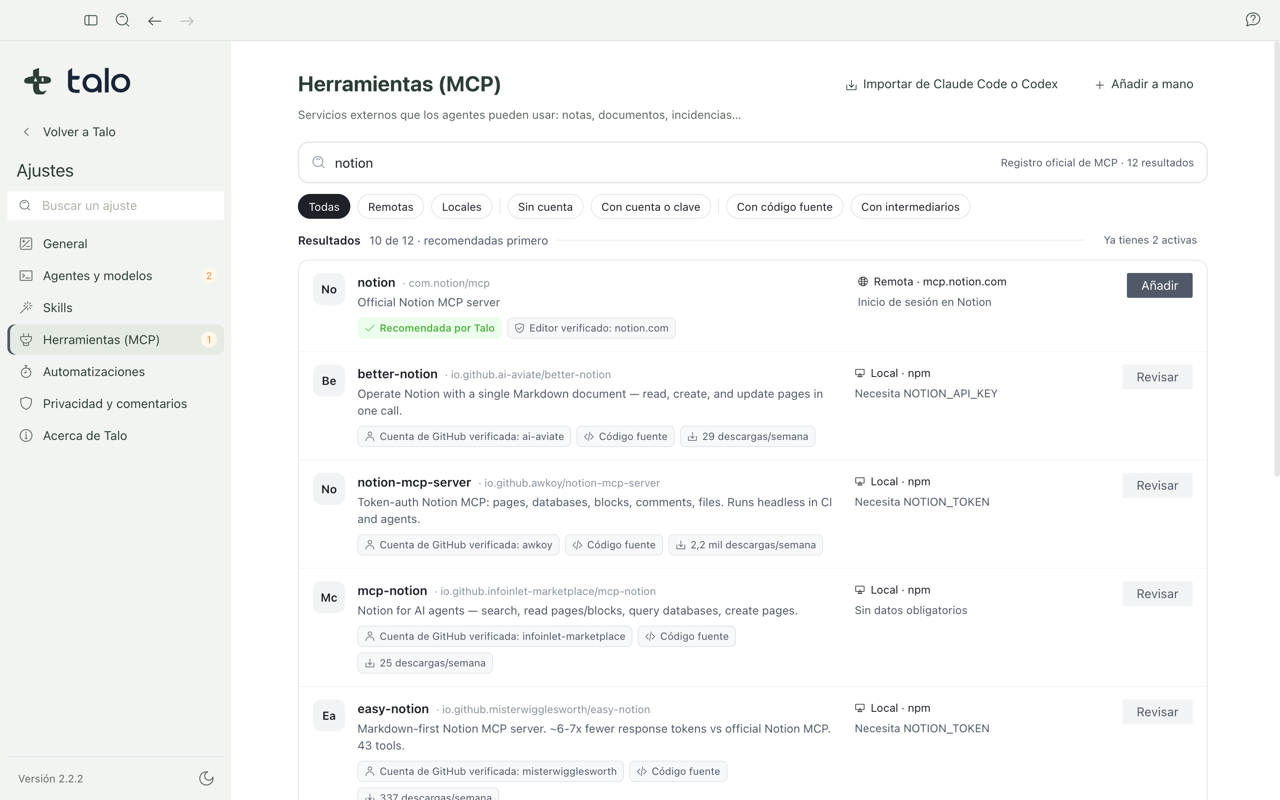
- Go to Settings › Tools › Search and type what you need (for example, "notion").
- Official results appear first. Those that depend on an intermediary are hidden by default, with a button to "Show" those results if you want to see them anyway.
- Click "Review" on the result you want. A mandatory sheet opens showing the exact command that would run, with a specific version pinned (not "the latest that exists"), a warning that Talo hasn't reviewed it, who publishes it, and any secrets masked.
- If the result depends on an intermediary, you'll need to check two boxes: that you've reviewed the tool and that you understand your data will pass through that intermediary. If an equivalent official version exists, the sheet offers to use that instead.
- If you close the sheet without confirming, nothing gets added.
- Check the box and click "Add and test". The tool gets added in off state, Talo tests it, and only turns it on if the test succeeds.
In the beta, only remote or npm-type tools can be added; other formats show as "Not available in beta" and can't be added. Trust signals (like GitHub stars) are shown with their source. If they don't come from a verified account, they're marked as "claimed by publisher, unverified".
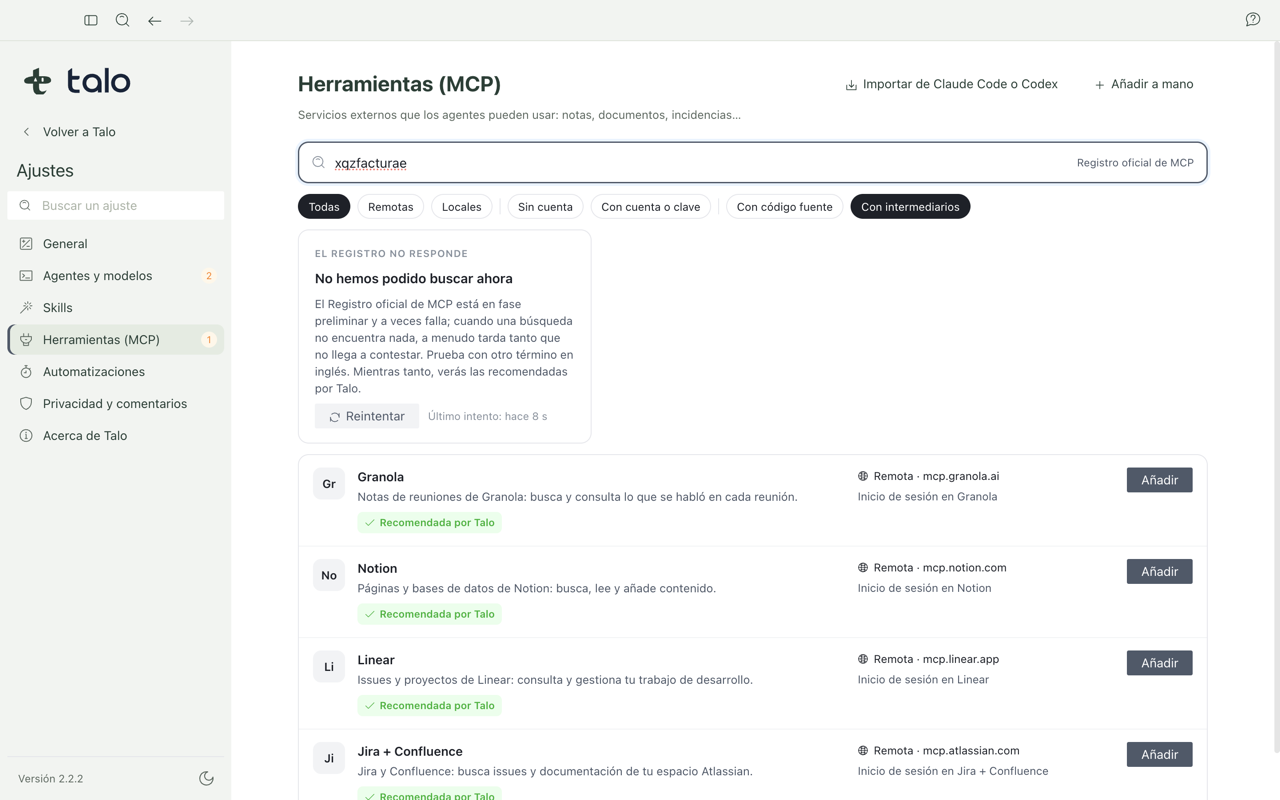
If the registry doesn't respond
Each recent search is saved in a local copy for an hour. Registry queries have a 20-second timeout and Talo retries once on timeout or server error. If it still doesn't respond:
- With a good last copy from up to 7 days ago, Talo shows it to you anyway and says when it was retrieved. Check that the result is still current before adding a tool.
- If there's no copy and no connection, you see "Offline · Only Talo's recommended tools" and the "Add" button is inactive. You can only use recommended tools you already know.
- If the registry responds with an error or times out, you see "Registry not responding" with a "Retry" button.
If this happens often, see Troubleshooting.