

Talo Guide
Projects
What a project is in Talo, how to create one, its metadata card, and its TALO.md instructions.
A project is a folder on your Mac where Talo keeps everything about a client or engagement: conversations, documents, diagrams, and tasks. Instead of scattered conversations and files spread across your computer, each project keeps them all together in one place.
Create or open a project
You can start with a new folder or one you already have with client files:
- In the sidebar, click "Add project".
- Choose "Create project" to start with a new folder, or "Open existing folder" if you already have client files on your Mac.
- If you create a new folder, macOS's file picker lets you choose where to save it and what to name it.
- The project opens with its own name, and its files appear in the content panel on the right.
The project stays in the sidebar even when you close Talo completely. Next time you open it, it's still there with your documents and last save intact.
Tip
From any project you can click "New conversation · <project name>" in the sidebar to start talking to an assistant without leaving that project.
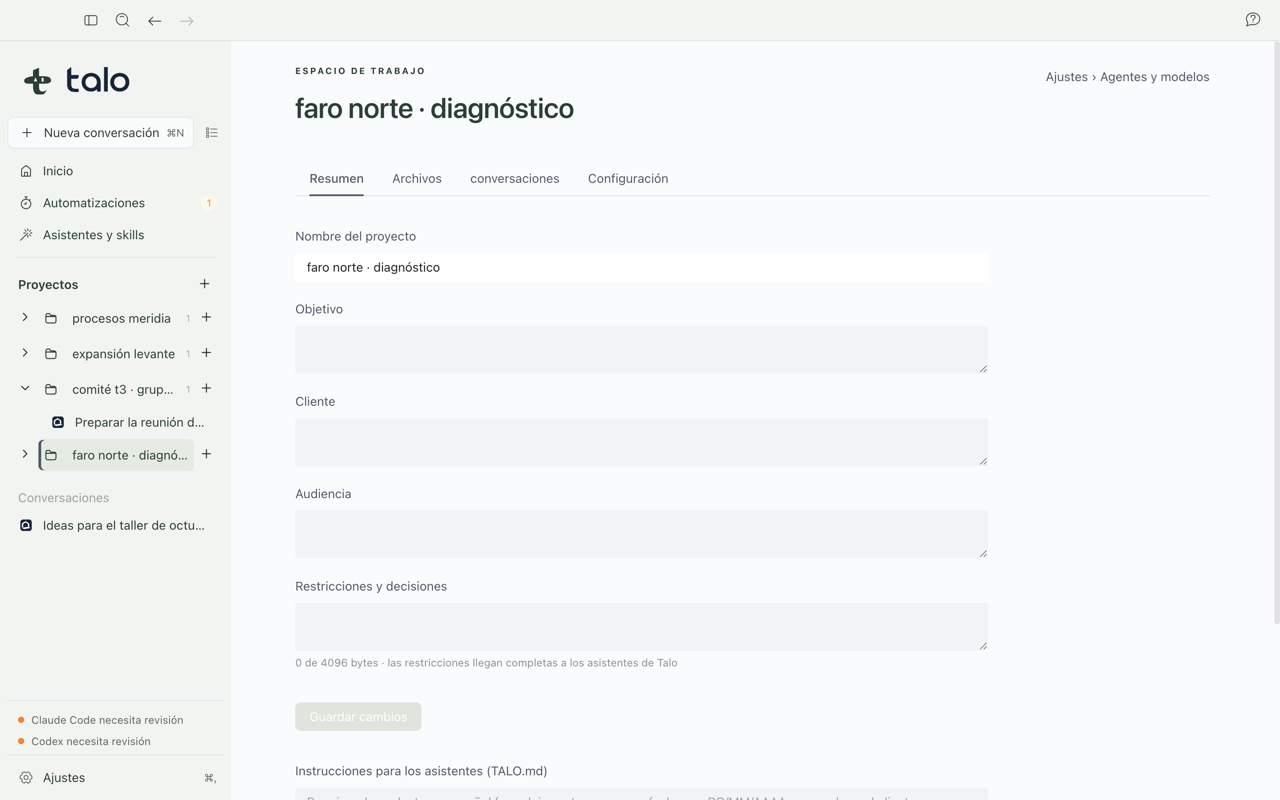
The project card
Organize by client or area
In "Overview", the "Organization" section lets you create a collection, like "Client X" or "Data", and assign the project to it. Each project belongs to at most one collection; it can also stay "Uncategorized". You can add multiple tags separated by commas, like data, 2026, urgent (up to 12 tags of 40 characters each).
Collections appear as a top-level group in the sidebar, with projects inside. Projects you already have stay in "Uncategorized" until you assign them. Creating the collection selects it in the editor; click "Save" in "Organization" to assign the project and its tags. This operation only changes Talo metadata. It doesn't move your Mac folder or conversations, and doesn't change the card that assistants read.
Project tags appear in the "Organization" section of its card. In the sidebar, the search icon in "Projects" searches by project name, collection name, or project tag; if a collection matches, it shows all its projects. Bulk editing and controls to rename or delete collections from the interface aren't available yet.
Each project has a card with four fields: objective, client, recipients, and constraints. It's the business card for the engagement: what you write there is what any assistant will always keep in mind, without you having to repeat it in every conversation.
Each field has a counter showing how many characters you've used and how many remain, so you never save text so long that it gets cut off without warning. If an old value exceeds the limit, "Save" becomes inactive until you shorten it.
Note
If constraints ever exceed the allowed size (for example, if you edited them outside Talo), the chat tells you with a direct button to the card to fix it. Talo never silently truncates this field.
TALO.md: project instructions
TALO.md is a simple text file inside the project folder where you write how to work with this client: the tone to use, document format, signature to include, and any other custom practices for the engagement. These are instructions you write yourself. It's not the automatic index of facts and sources that appears in the Memory tab.
You edit it from the project's "Overview" tab, like any other document. Every time a conversation starts in that project, the assistant reads TALO.md along with the card, so you can ask the assistant about the objective or a rule you noted, and it will cite it back.
This is what makes it useful in daily work:
- The context survives between sessions. No need to explain anything again when opening a new conversation.
- It also survives closing Talo completely and reopening it, or restarting your Mac.
- It's the same for any assistant you use in the project, whether you work with Claude Code or switch engines to Codex.
Only you write in TALO.md
The assistant can read TALO.md and quote it, and can help you draft its content if you ask, but saving changes is always an action you take from the "Overview" tab. No assistant can modify it on their own.
If you save while the file changed elsewhere (for example, you edited it with another program), Talo warns of the conflict and lets you reload instead of overwriting silently. And like the card, TALO.md has a reasonable size limit. If you exceed what reaches the assistants, the editor warns you to trim it yourself.
To see all this in action with your first project, follow First session. To learn about the information Talo indexes from files and conversations, open Memory. And if you want to turn meeting notes into task board cards, follow Create a board from meeting notes.